Embedded AI Tools
The Embedded AI Tools feature allows you to create model configurations for your project. You can add model files, assign them to cores, define engine-specific settings, and generate deployable C/C++ code. You can also run compatibility and profiling reports to check memory usage, operator support, and performance characteristics.
Use this feature to manage model deployment in multi-core environments, run compatibility and profiling checks, and generate engine-specific code for supported SoCs.
Before you start
For full compatibility when using this feature, create a new workspace and select an AI-based template (for example, Zephyr Single Core TensorFlow AI Model for MAX32690).
For details on supported processors, see supported processors and model formats.
Windows dependency
On Windows, the Embedded AI Tools require the Visual C++ Redistributable for Visual Studio 2015 to be installed. Install this redistributable manually before running model compatibility or profiling reports.
Manage model configurations
AI-based templates (such as Zephyr Single Core TensorFlow AI Model) include a pre-configured model. You can modify this existing model or add additional models.
To add a new model:
- Click Add Model.
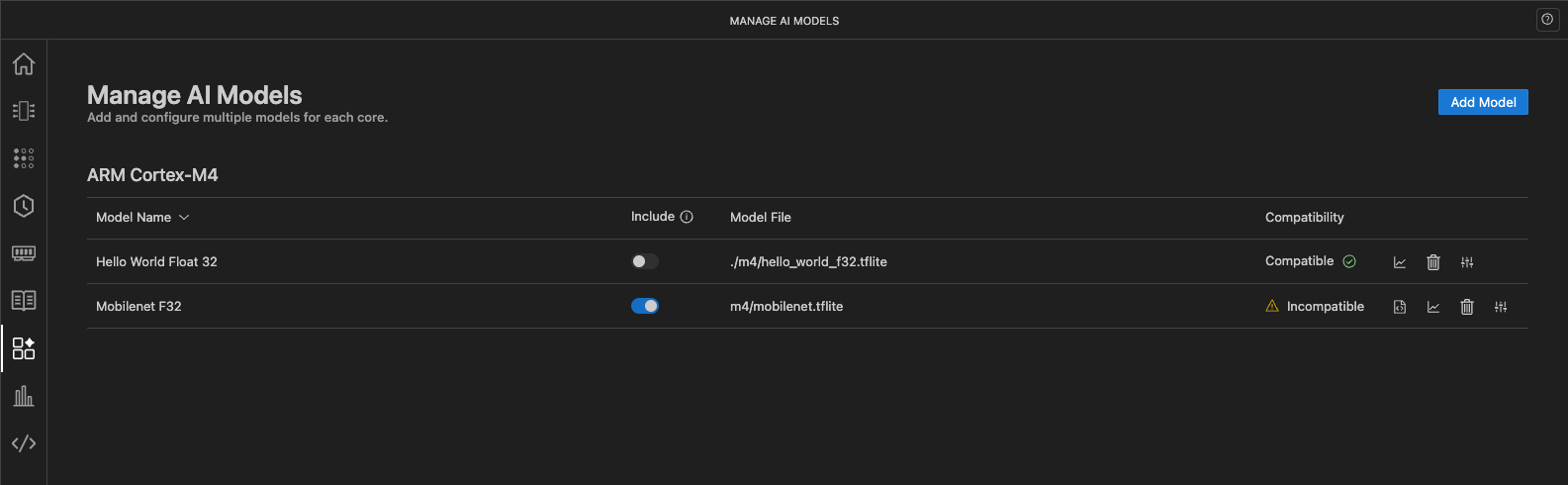

- Select a Target core. For example, ARM Cortex-M4.
- Enter a Model Name. This name is used to identify the model configuration.
- Click Browse to open the Model Zoo, then select a model from the library or a local file. See Select a model from the Model Zoo. You can also enter a relative file path or URL directly in the Model File field.
- (Optional) Configure backend-specific settings:
- For TensorFlow Lite Micro models, see Configure TFLM settings
- For izer backend models, see Configure izer backend settings
- Click Add to add the model to the list.
Select a model from the Model Zoo
The Model Zoo is a library of AI models hosted by Analog Devices. When you click Browse on the model file field, the Model Zoo opens so you can browse, search, and filter models, or select your own model from a local file.
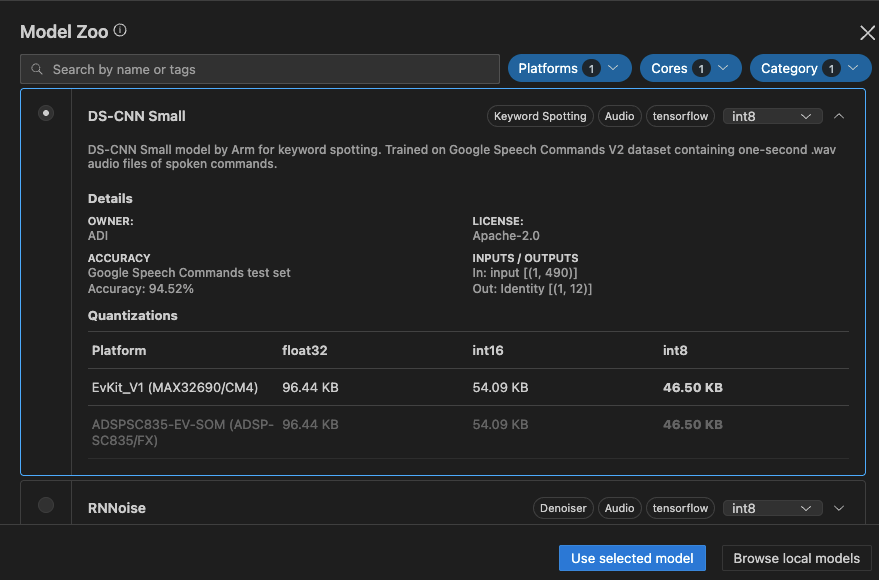
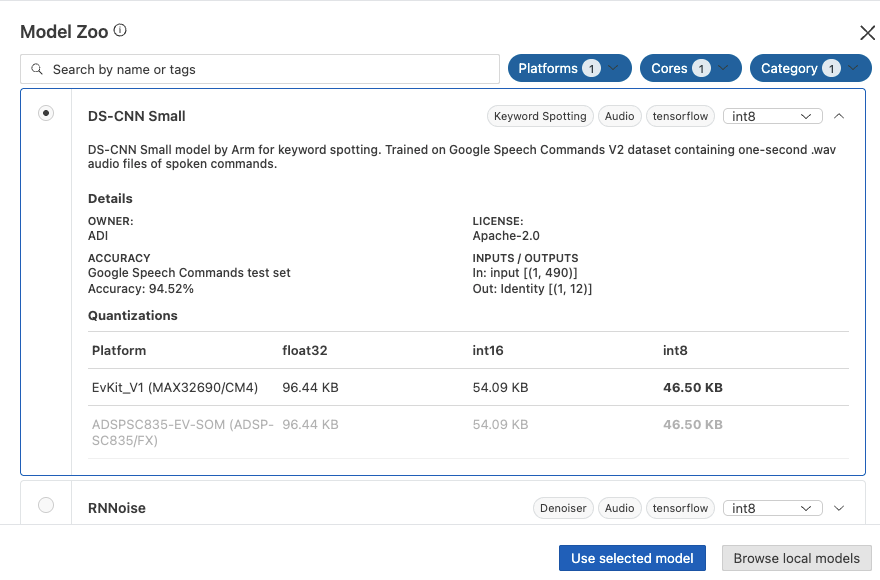
To select a model from the library:
- Use the Search field to find models by name or tag, or filter the list with the Platforms, Cores, and Category filters. The filters are pre-set to match the SoC and target core of the model configuration.
- Expand a model card to view its details, including the description, owner, license, accuracy metrics, network inputs and outputs, and the Quantizations table of model sizes per platform.
- From the quantization menu in the card header, select the quantization to deploy (for example,
int8). The Quantizations table shows the model size for each platform and quantization. - Select the model card, then click Use selected model.
The model file field is populated in the model configuration, along with the dataset file field when the model provides sample data for the chosen quantization.
To use a model that isn't in the library, click Browse local models and select a file from your workspace.
Use a custom model zoo
By default, the Model Zoo lists models hosted by Analog Devices. To add a custom source, set Model Zoo: Urls (cfs.modelZoo.urls) in the CodeFusion Studio settings to one or more base URLs. Each URL must expose model_index.json at its root without authentication and allow cross-origin GET requests. The Model Zoo aggregates models from every configured source.
To see the expected structure, refer to the ADI Model Zoo repository, which hosts the default source.
Configure TensorFlow Lite Micro (TFLM) model settings
For TFLM models, you can optionally configure the following settings:
-
Memory section for data: Specify the name of the linker section where model data should be placed (for example,
.data,.flash). Match the section specified to the one provided in your linker file, or leave it blank to use the default data section. -
Symbol for data: Define the C variable name used in the generated code for referencing the model.
-
Arena size for model: Define the arena size in bytes for the model. If omitted, the size will be estimated automatically.
-
Memory section for arena: Specify the name of the linker section where the arena buffer should be placed. The arena is the working memory used by TensorFlow Lite Micro during inference. Match the section to one provided in your linker file, or leave it blank to use the default section.
-
Memory section for dataset: Specify the name of the linker section where the dataset should be placed.
-
Dataset File: Click Browse to upload and select a dataset file, or enter a relative file path or URL. This is an optional file containing model input dataset for testing in binary format. Example dataset files (
.bin) are located in thecfs-ai/examples/directory of the CodeFusion Studio repository.
Using AI models with non-AI templates
If you create a workspace for a supported processor and choose a non-AI template (such as Zephyr Single Core Blinky), note that the application source file is main.c.
When you add a TensorFlow Lite Micro (TFLM) model using Add Model, the generated model files are C++ (.cpp and .hpp). This can cause compiler warnings or errors if your project uses a C-only source (main.c).
To fix this:
- Replace
main.cwithmain.cppin your project to convert it to C++, or - Add a C++ wrapper source file that exposes a C interface to the model.
Configure izer backend settings
For izer backend models on the MAX78002 CNN accelerator, you can configure the following settings:
-
Enable softmax layer generation: Enable or disable softmax layer generation. Default: enabled.
-
Inference timer: Select which timer (0-3) to use to measure the inference timing. Default: 0.
-
Test name prefix: Specify the prefix used for the test name.
-
Round average pooling results: Enable or disable rounding of average pooling results. Default: enabled.
-
CNN Clock divider: Select the clock divider for the CNN accelerator (1 or 4). Default: 1.
-
Input shape: Enter a tuple describing the input shape used to generate random sample input data (for example,
256,256,256). -
Use FIFO: Enable or disable using a FIFO when reading layer data. Useful for larger models. Default: enabled.
-
Network configuration file: Click Browse to upload and select the network configuration YAML file, or enter a relative file path or URL. This file is required for izer backend models. Example network configuration files are located in the
networks/directory of the ai8x-synthesis repository.
Note
For reference on how to train PyTorch models compatible with MAX78002, see the open source ai8x-synthesis repository.
Field descriptions
| Field | Backend | Description |
|---|---|---|
| Target | All | The processing core that will run the model. For example, ARM Cortex-M4. |
| Model Name | All | Name used to identify the model configuration. Maximum 64 characters. |
| Model File | All | The model to deploy. Select a model from the Model Zoo or a local file, or enter a path or URL. The path can be absolute or relative to the workspace. |
| Memory section for data | TFLM | The memory section used to map the model data. |
| Symbol for data | TFLM | C symbol name used for the model data array. Appears in the generated code. |
| Arena size for model | TFLM | Arena size in bytes for the model. If omitted, the size will be estimated automatically. |
| Memory section for arena | TFLM | The memory section used to map the arena buffer. |
| Memory section for dataset | TFLM | The memory section used to map the dataset. |
| Dataset File | TFLM | Path or URL to a file containing model input dataset for testing in binary format. |
| Enable softmax layer generation | izer | Enable or disable softmax layer generation. |
| Inference timer | izer | Timer (0-3) to use to measure the inference timing. |
| Test name prefix | izer | The prefix used for the test name. |
| Round average pooling results | izer | Enable or disable rounding of average pooling results. |
| CNN Clock divider | izer | Clock divider for the CNN accelerator (1 or 4). |
| Input shape | izer | Tuple describing the input shape (e.g., 256,256,256). |
| Use FIFO | izer | Use a FIFO when reading layer data. Useful for larger models. |
| Network configuration file | izer | Path to the YAML file describing the network configuration. Required for izer backend models. |
| Compatibility | TFLM | Indicates whether the model can fit and run on the selected target. |
| Include toggle | All | Enables or disables file generation for the model. Toggling a model off keeps the configuration but does not generate code. |
Note
Disabling the Include toggle does not remove any previously generated files. These will remain in your project unless overwritten by a subsequent generation, or deleted manually.
Compatibility and profiling reports
To generate reports for your model:
- Click Open Compatibility Report to view memory constraints, operator issues, and data type compatibility. This button only appears if compatibility issues are detected. For details on interpreting the report, see Compatibility Analyzer Report.
- Click Open Profiling Report to view a summary of resource usage and optimization opportunities. For details on interpreting the report, see Resource Profiling Report.
Accessing and managing reports
By default, reports are stored in the temp directory. Use the Save As option in Visual Studio Code to store the report in a different location.
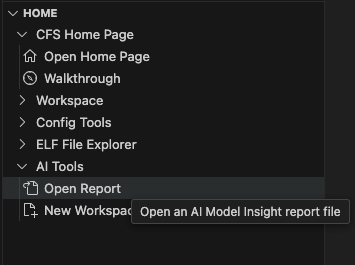
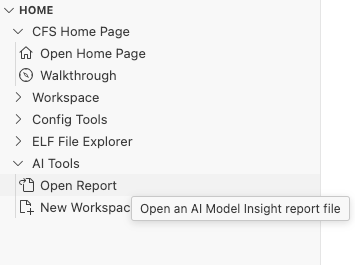
To reopen the report at a later time, select AI Tools > Open Report from the Home section of the CFS sidebar.
Important
These reports are for guidance only and do not prevent code generation. Please note that this is an early version of the reporting feature, and it may evolve in future releases. Currently, only TFLM models are supported. CNN accelerator models on MAX78002, which use PyTorch (izer backend), are not supported by the analysis tools. These options are disabled in the UI when such a model is selected.
Modify a model configuration
- Locate the model in the list.
- Click configure

 to open the Configure Model sidebar.
- Apply your changes, then click Update.
Remove a model configuration
When you remove a model configuration, it is deleted from the list and excluded from future code generation. Existing files will not be removed.
To remove a model configuration:
- Locate the model in the list.
- Click delete

 .
- Click Confirm.
Note
Deleting a model configuration does not remove any previously generated files. These will remain in your project unless overwritten by a subsequent generation.
Next steps
Before you generate code, enable the Include toggle for each AI model configuration you want to include in the generation.
If the number of AI models per core is restricted (for example, the MAX78002 CNN accelerator supports only one model), the UI automatically deselects excess configurations.
When you are ready, proceed to Generate Code.