Manage extension updates and versions
The CodeFusion Studio extension and software development kit (SDK) must use compatible versions. By default, VS Code updates extensions automatically. If the extension updates but the SDK does not, the versions can become incompatible. See Compatibility rules.
Use the procedures on this page to keep the extension aligned with a specific CFS SDK version.
Tip
If the CFS extension updated unexpectedly, disable automatic extension updates and install a specific version.
Disable automatic extension updates
To disable auto-update for the CFS extension only:
- Open the Extensions panel in VS Code.
- Search for CodeFusion Studio and select it to open the details page.
- Under the extension title, clear the Auto Update checkbox.


This allows you to keep using the extension version bundled with a specific CFS SDK.
Install a specific version
You can install a specific version of the CodeFusion Studio extension or any of its dependent extensions (such as Zephelin Trace Viewer or Cortex-Debug) from the VS Code Extensions panel.
- Open Extensions (
Ctrl+Shift+X/Cmd+Shift+X) and search for the extension by name. - Select the extension to open the details page, then clear the Auto Update checkbox to prevent VS Code from overwriting your selection.
-
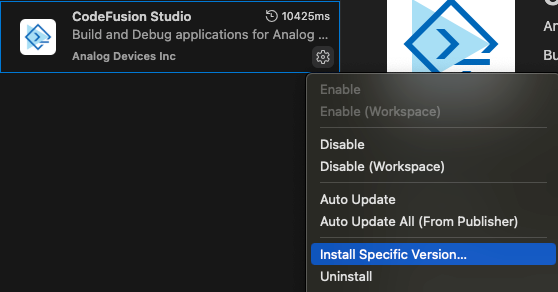
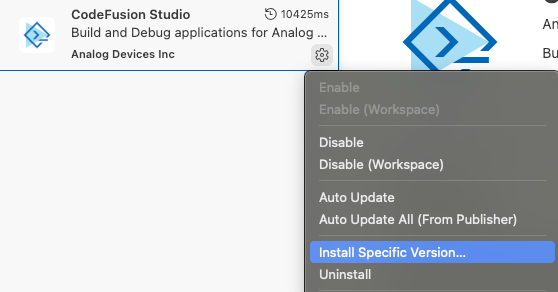
Select the Manage (gear) icon on the extension details page, or right-click the extension (Ctrl+click on macOS), and select Install Specific Version.
-
Select the version you want to install. The extension version must be compatible with the installed CFS SDK — see Compatibility rules.
- Reload the VS Code window: open the Command Palette (
Ctrl+Shift+P/Cmd+Shift+P) and run Developer: Reload Window.
For the CFS extension, you can also install a specific version using Install from VSIX — see Install from a VSIX file.
Review dependent extensions
The CodeFusion Studio extension depends on other VS Code extensions (including Microsoft C/C++, Cortex-Debug, and Zephelin Trace Viewer) to provide debugging and development features.
In most cases, no additional action is required.
- First install of the CFS extension: VS Code installs missing dependent extensions automatically when it can access the Visual Studio Marketplace.
- Dependencies already installed: VS Code keeps existing versions unchanged.
- Upgrading the CFS extension: Upgrading CFS does not itself update dependent extensions. VS Code updates each dependency according to its own automatic update setting.
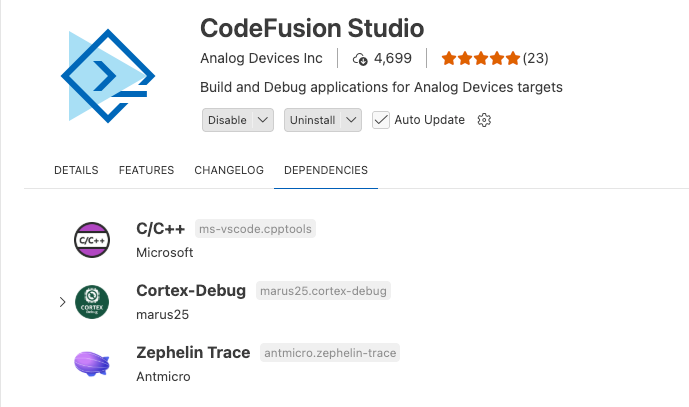
To view all dependent extensions, open the Extensions panel, select CodeFusion Studio, and open the Dependencies tab.
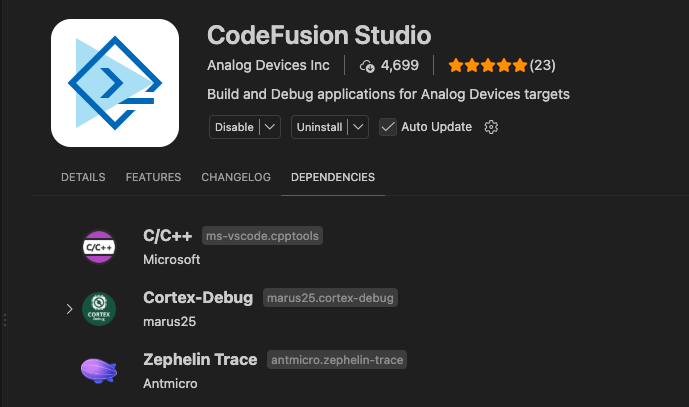
If you encounter issues with a dependent extension, select Update if available, or install a specific version.
Note
When you uninstall the CFS extension, VS Code doesn't remove dependent extensions. For details, see Uninstall CodeFusion Studio.
Compatibility rules
Each CFS extension version relies on functionality provided by the CFS SDK it was released with. If the versions are incompatible, CFS displays a warning at startup (The selected CFS SDK (vX.Y.Z) is not compatible with the extension (vA.B.C).), and features that depend on newer SDK components may not work as expected.
CFS considers the SDK and extension compatible when:
- The major versions match. For example, extension 2.x.x requires SDK 2.x.x.
- The SDK minor version is the same or higher than the extension minor version. For example, extension 2.1.x requires SDK 2.1.x or higher, and is not compatible with SDK 2.0.x or any 1.x.x version.
- Patch versions do not affect compatibility. For example, extension 2.0.1 and SDK 2.0.0 are compatible.
| Extension version | Compatible SDK versions | Not compatible |
|---|---|---|
| X.Y.Z | X.N.* where N ≥ Y | X.N.* where N < Y, or any version with a major other than X |
Check the installed extension version
Open the Extensions panel in VS Code and select CodeFusion Studio. The installed version is shown at the top of the details panel.