View installed package contents
The Packages view in the CodeFusion Studio sidebar lets you view the contents of installed packages. To install or remove packages, use the Package Manager UI.
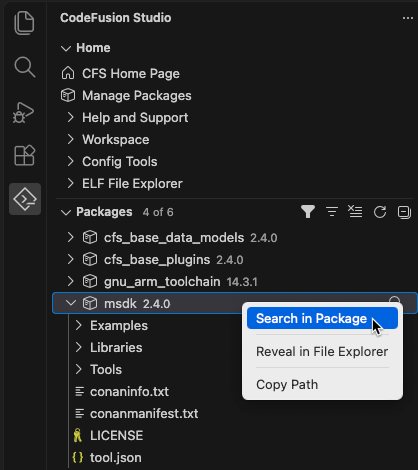
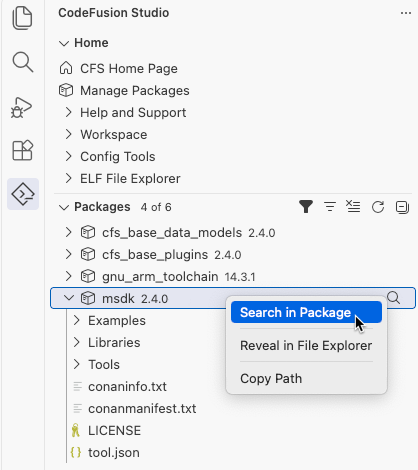
Each package appears with its version. Hover over a package to view its version and install path. The tooltip also shows the package type when available. Expand a package to view its folders and files. Files open in read-only mode, so you can't accidentally edit an installed package.
If no packages are installed, the view prompts you to select Manage Packages to open the Package Manager.
Filter the package list
By default, the view shows only the packages declared as dependencies by your workspace (in .cfsdependencies manifests). The view header shows how many packages the view lists out of the total installed, for example 4 of 6. Use the buttons in the view title bar to change what the view lists:
| Icon | Action | Description |
|---|---|---|
  |
Show All Installed Packages | List every installed package. Appears when the view lists only workspace dependencies. Selecting it changes the button to Show Workspace Dependencies Only. |
  |
Show Workspace Dependencies Only | List only the packages declared in .cfsdependencies manifests in your workspace. Appears when the view lists all installed packages. Selecting it changes the button back to Show All Installed Packages. |
  |
Filter Packages by Type | Select one or more package types to show. If you select none, all types are shown. |
  |
Clear Package Filters | Reset all filters. Appears when a filter is active. |
  |
Refresh Packages | Reload the list of installed packages. The view also refreshes automatically when you install or remove a package, or when a .cfsdependencies file changes. |
  |
Collapse All | Collapse every expanded package and folder. |
CodeFusion Studio remembers your filter selection for each workspace.
Work with packages, folders, and files
Hover over a package or folder and select the Search in Package icon 
 to search.
Right-click a package, folder, or file for these actions:
- Search in Package: Open VS Code search limited to that package or folder (packages and folders only).
- Reveal in File Explorer: Show the item in the file manager of your operating system.
- Copy Path: Copy the full path of the item.
- Copy Relative Path: Copy the path relative to the package root (folders and files only).