Navigation
An overview of the CodeFusion Studio layout and navigation.
CFS sidebar
Click the CFS icon 
 in the VS Code Activity Bar to open the CFS sidebar.
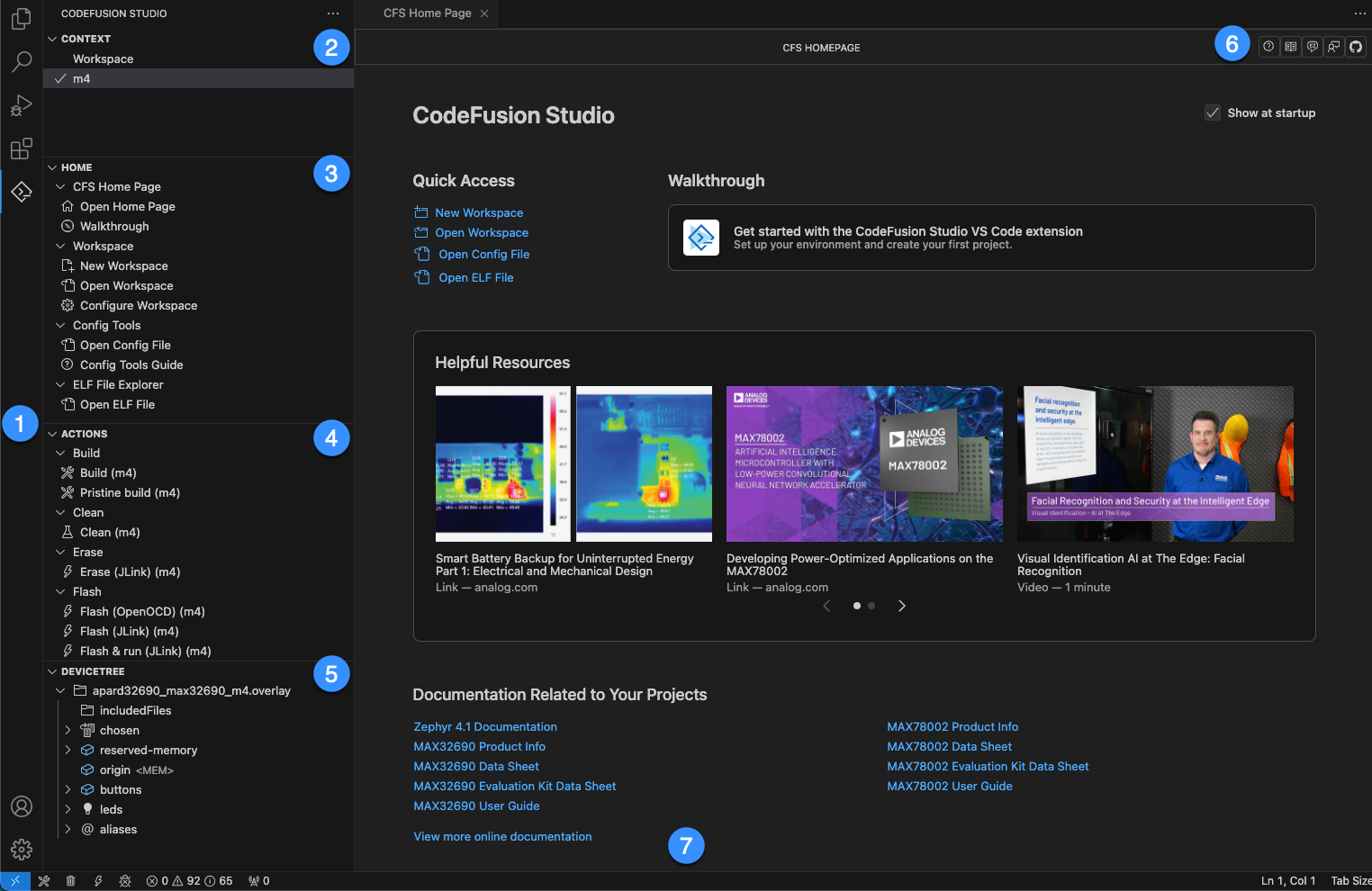
The sidebar contains the following views:
1 Home
Provides access to commonly used CFS features and support resources:
- CFS Home Page — open the CFS Home Page.
- Manage Packages — open the Package Manager.
- Help and Support — links to the Walkthrough, online help, Engineer Zone, and technical support.
- Workspace — create, open, browse examples, configure, or create a workspace from an AI model.
- Config Tools — open an existing config file or view the Config Tools guide.
- ELF File Explorer — open an ELF file.
- AI Tools — open an AI Model Insight report or create a workspace from an AI model.
2 Context Filter
Displays the current project and allows switching between projects in the workspace.
3 Actions
Displays tasks such as build, clean, erase, flash, and debug. Available actions update dynamically based on the project selected in Context Filter.
Tip
Select Copy and Edit 
 next to a task to create a new custom task.
4 DeviceTree
Displays hardware components from the selected Zephyr project's generated device tree or from an open device tree file.
5 Trace Capture
Capture profiling traces from Zephyr projects and view runtime and AI inference performance. For setup instructions, see Profiling.
6 VS Code Status Bar
The VS Code Status Bar appears at the bottom of the window. CodeFusion Studio adds build, clean, flash, and debug shortcuts on the left side of the status bar.
Note
For more information on navigating VS Code, see Visual Studio Code User Interface
7 CFS Home Page
Select CFS Home Page from the Home section of the sidebar to open the CFS Home Page.
The CFS Home Page contains the following:
7.1 Header bar
Quick links to online documentation, Engineer Zone, technical support, GitHub, and a Help button that opens the help modal.
7.2 Quick access links
Shortcuts to create a workspace, open a workspace, browse MSDK examples, open a config file, or open an ELF file.
7.3 Walkthrough
Provides access to the Getting Started walkthrough for setting up your environment and creating your first project.
7.4 Helpful resources
A carousel of articles and videos relevant to CodeFusion Studio development.
7.5 Related documentation
SoC-specific documentation links based on your installed packages.