Package Manager Troubleshooting
Most issues occur when required packages are missing, incompatible, or cannot be downloaded. This page lists common problems and how to resolve them.
Common issues include:
- Package integrity problems
- Restricted packages not appearing
- Out-of-date authentication sessions or expired API keys
- Incorrect or stale remotes
- Missing SoCs in the Workspace Creation Wizard
Package integrity issues
If old or corrupted packages accumulate over time, they can cause Package Manager errors or unexpected behaviour. Use the following steps to clean up your local package state:
-
Remove any unused cached packages from your local storage:
cfsutil pkg delete "*"This command deletes all cached packages that are not actively installed.
-
Run the following command to view the remaining installed packages.
cfsutil pkg list -
Uninstall any packages you no longer need:
cfsutil pkg uninstall <package-name> -
Run the delete command again to complete the cleanup:
cfsutil pkg delete "*" -
(Optional, last resort) Delete the
com.analog.cfsdirectory if issues persist:- Linux:
~/.local/share/com.analog.cfs - macOS:
~/Library/Preferences/com.analog.cfs - Windows:
%LOCALAPPDATA%\com.analog.cfs
Warning
This removes all installed CFS packages, cached data, and custom remotes. You will need to reinstall required packages.
- Linux:
-
Restart VS Code and reopen Package Manager.
If you deleted the
com.analog.cfsdirectory in step 4, reinstall the required packages using:cfsutil pkg install <package-name>
Restricted packages not appearing
This usually happens when your myAnalog login session has expired, or — if you use cfsutil with the CFS_API_KEY environment variable — when the API key is expired or not valid.
Check login status Command Palette
- Open the Command Palette (
Ctrl+Shift+P/Cmd+Shift+Pon macOS). -
Run
(CFS) myAnalog Status.

If you are logged out:
-
Run the
(CFS) myAnalog Logincommand in the Command Palette.

-
Click Open to launch the browser. If the browser does not open, use the Copy button to copy the link and paste it in your browser.
-
On the myAnalog login page, use the sign-in method associated with your account:
- Email and password: Enter your registered email address and password, then select Log in. If you don’t have a myAnalog account, register at analog.com/myAnalog.
- Google Account: Select Google Account, then sign in with your Google credentials.
- LinkedIn Account: Select LinkedIn Account, then sign in with your LinkedIn credentials.
- Analog Devices Account: If you are an Analog Devices employee or contractor on a managed device, select Analog Devices Account, then sign in with your Analog Devices credentials.

-
When the Sign-in Successful page appears, close the browser and return to VS Code.
- A VS Code notification confirms you are logged in.
Check login status (command line)
-
Check your login status:
cfsutil myanalog status -
If your session has expired, log in again:
cfsutil myanalog login -
(Optional) View all configured remotes:
cfsutil pkg list-remotes
Check API key validity (command line)
If you authenticate cfsutil using the CFS_API_KEY environment variable, an expired or incorrect key produces the same symptoms as a missing login session.
-
Confirm the variable is set and contains a value:
Warning
Never share your full API key. To check that the variable is set without displaying the entire key, use this masked view:
On Linux or macOS:
key=$CFS_API_KEY; echo "${key:0:6}...${key: -3}"On Windows PowerShell:
$key = $env:CFS_API_KEY; '{0}...{1}' -f $key.Substring(0, 6), $key.Substring($key.Length - 3)This shows only the first 6 and last 3 characters of your key (for example:
abc123...xyz). -
List your API keys to check whether the key in use is still active. This requires an active myAnalog session:
cfsutil myanalog login
cfsutil myanalog apikey list
Check the Masked Key column to identify your key. If the key has expired or does not appear in the list, it is no longer valid.
-
Create a replacement key:
cfsutil myanalog apikey create --description "<descriptive label>"The key value is shown once when the command succeeds. Save it immediately.
-
Update
CFS_API_KEYwith the new value and retry the failing command.
Remote management issues
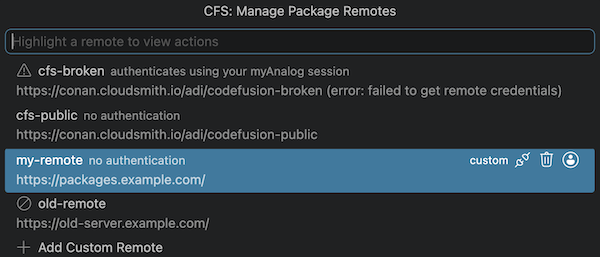
If downloads fail or restricted packages disappear unexpectedly, a remote may be misconfigured.
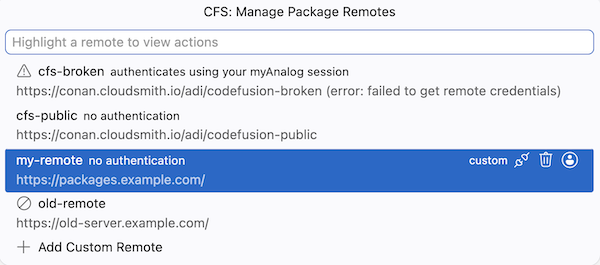
To manage remotes:
- Open the Command Palette.
- Run
Manage Package Remotes. -
Highlight a remote to:
- Reauthenticate a custom remote
- Reenable a disabled remote
- Disable a remote which has an error
Missing SoC in the Workspace Creation Wizard
If you install a new SoC package (for example, using cfsutil pkg install) but the SoC does not appear in the Workspace Creation Wizard, the catalog may be out of date or missing entries. The catalog determines which SoCs and templates are shown in the wizard.
Follow these steps in order.
-
Run the following command to ensure the package containing the required SoC is installed:
cfsutil pkg listIf it is missing, reinstall the package and try again.
-
Restart VS Code and reopen CodeFusion Studio to refresh the catalog. The Workspace Creation Wizard may not update immediately after installing a package.
-
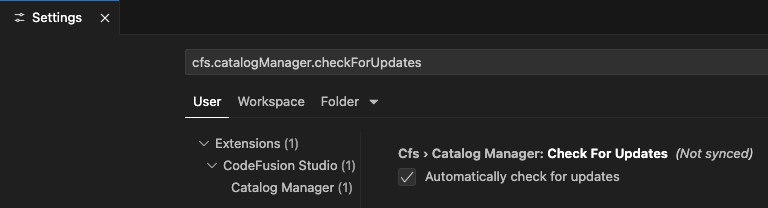
Make sure catalog updates are enabled.
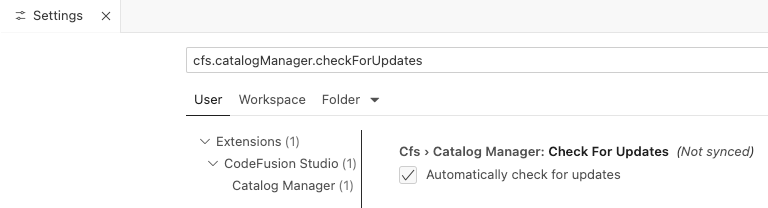
- Open VS Code Settings.
- Search for
cfs.catalogManager.checkForUpdates. - Make sure this option is enabled so the catalog can refresh when CFS checks for updates.
-
If the new SoC is from a restricted package, make sure you are logged in with your myAnalog account. See Restricted packages not appearing for login steps.
-
(Optional, last resort) Delete the local catalog and restart if the SoC still does not appear:
- Close VS Code.
-
Delete the local catalog file:
- Linux:
/home/<username>/cfs/<version>/.catalog - macOS:
/Users/<username>/cfs/<version>/.catalog - Windows:
C:\cfs\<version>\.catalog
- Linux:
-
Restart VS Code. The catalog file is recreated automatically on startup.
- If required, log in again with your myAnalog account.
- Open the Workspace Creation Wizard and verify that the new SoC is now listed.
Still having issues?
If you continue to experience problems:
- Double-check your login status and remotes.
- Try logging in from a different network or device.
- Contact your account representative, visit ADI Engineer Zone to ask a question or submit a technical support request. For details, see Help.