West Editor
The west.yml manifest lists the projects (Git repositories) in a west workspace, and the revision of each one. The West Editor shows the manifest of your workspace as cards instead of YAML. Use it to:
- View the current status of each project in your workspace.
- Search and filter the project list.
- Edit the revision and groups of a project, and turn groups on or off in the group filter.
- Review the remotes and imported manifests that the manifest uses.
The editor changes only the fields it shows and leaves the rest of the file as it was.
Open the West Editor
The West Editor opens by default when you open a file named west.yml. To open a manifest, use the west.yml of a west workspace that you manage yourself, such as one you create with west init. In a west workspace, the main manifest is in the manifest repository, for example zephyr/west.yml.
You can also open imported manifests that have other file names from the Manifests tab.
Tip
Zephyr projects that CodeFusion Studio creates use the west workspace that ships with the installed Zephyr package, which you can't modify. To view this west workspace in the West Editor, open the Packages view in the CodeFusion Studio sidebar, expand a Zephyr package, and open its zephyr/west.yml file. Files in the Packages view open in read-only mode. The West Editor shows your changes to that file, but they aren't saved. Use the file to see how the editor works.
Switch between the West Editor and text
To switch between the West Editor and the plain text view of a west.yml file, use the buttons in the editor title bar:
| Icon | Action | Description |
|---|---|---|
  |
Open west.yml in West Editor | Open the file in the West Editor. Appears when the file is open as text. |
  |
Open west.yml as Text | Open the file as plain text. Appears when the file is open in the West Editor. |
You can also switch views from the editor menu in the breadcrumb bar. Select West Editor - CodeFusion Studio or Text Editor. The menu shows the current editor, such as West Editor.
Both views open the same file, so changes you make in one view appear in the other, and undo, redo, and save work across both.
To choose which editor opens by default for west.yml files, open the editor dropdown in the breadcrumb bar, then select Set Default for '**/west.yml'.
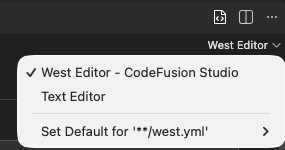
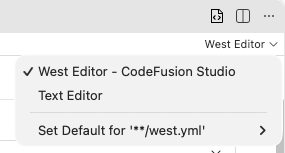
The West Editor interface
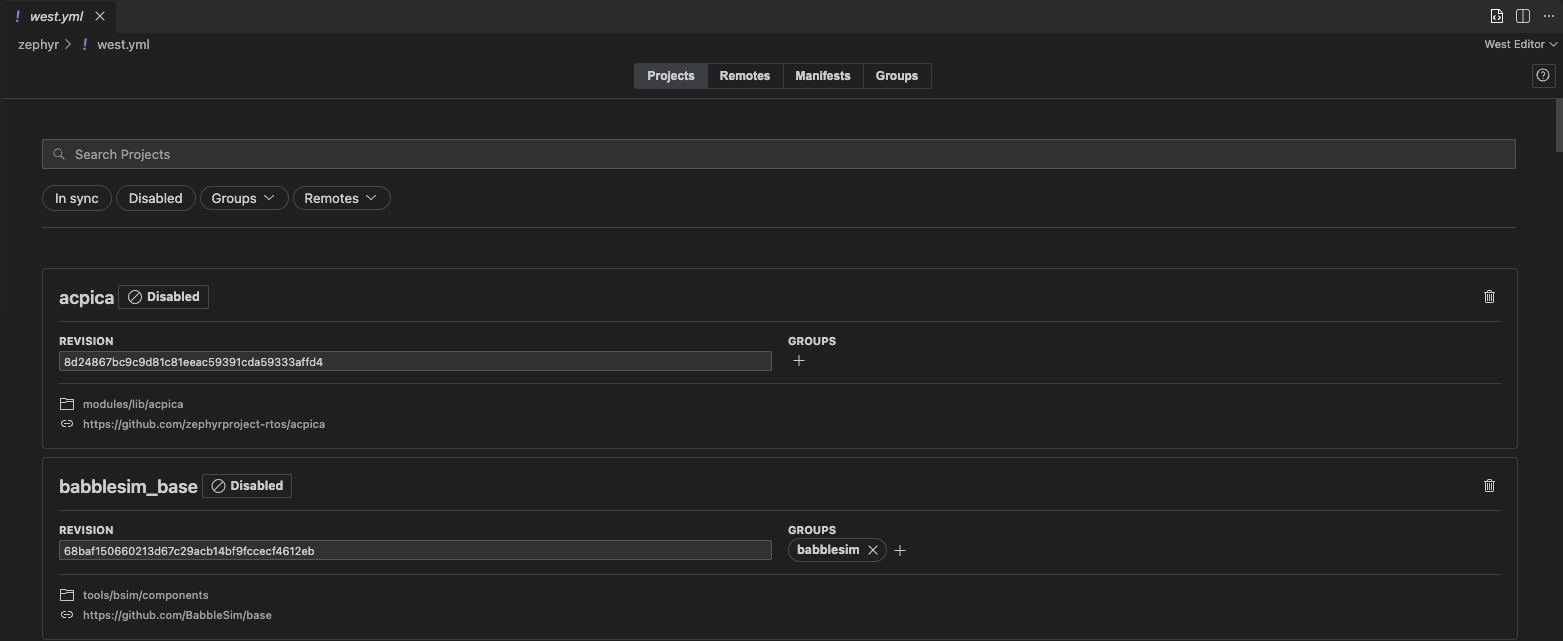
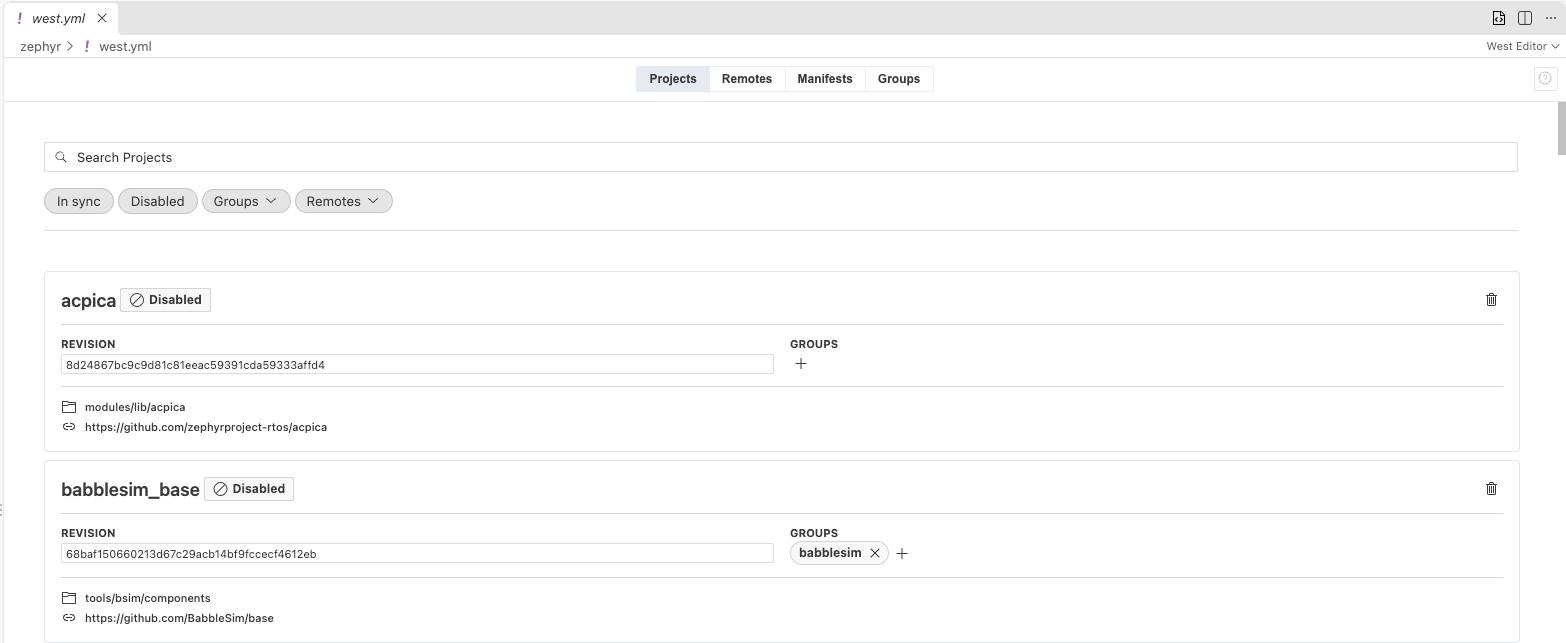
The editor has four tabs.
Projects
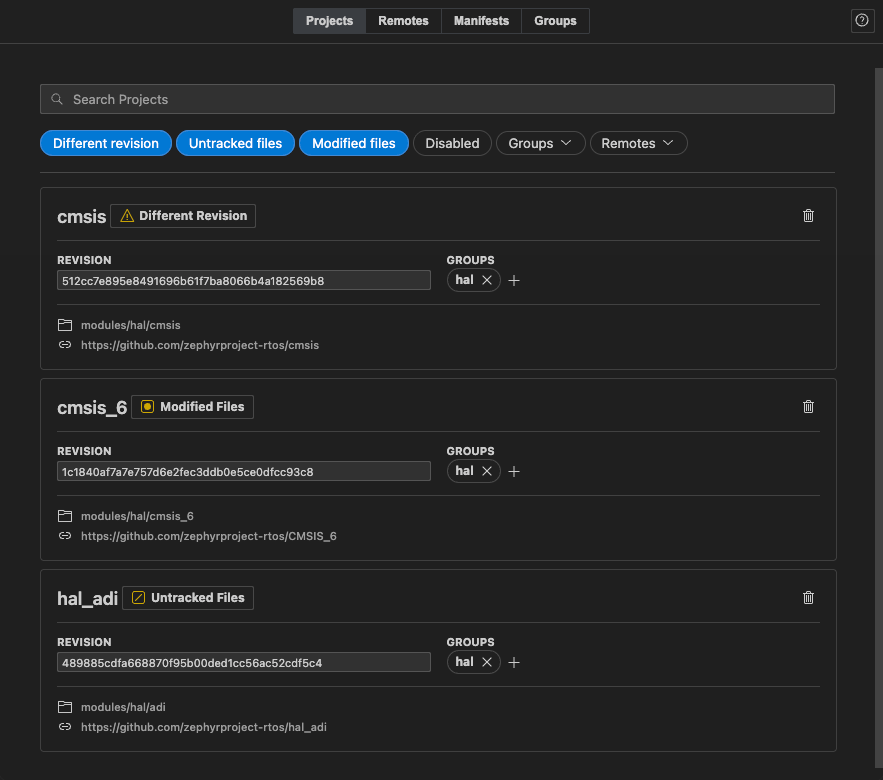
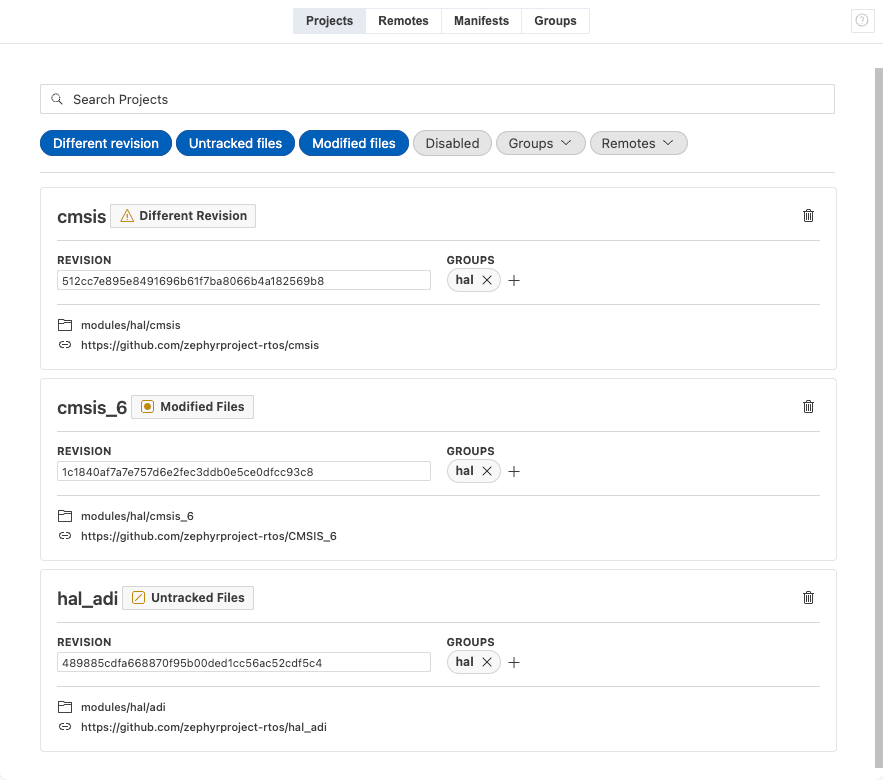
The Projects tab shows one card for each project in the manifest. Each card shows:
- The project name
- The status badge, when available, that compares the project in your local workspace with what
west.ymldefines - The Revision that the manifest defines for the project
- The Groups the project belongs to
- The path west checks the project out to, and the URL west fetches it from
The status badge shows the first of the following that applies to the project:
| Status | Meaning |
|---|---|
| Disabled | West treats the project as inactive, for example because the group filter disables its groups. |
| Not Cloned | The project is enabled but hasn't been cloned, or has been removed from your local workspace. Run west update to clone it. |
| Different Revision | The checked-out commit doesn't match the revision that west.yml defines. |
| Modified Files | The project has uncommitted changes to tracked files. |
| Untracked Files | The project has files that Git doesn't track. |
| In Sync | The project in your local workspace matches what west.yml defines, with no local changes. |
The editor reads statuses from your workspace with west and Git, and refreshes them when you save the file.
Remotes
The Remotes tab lists the remotes in the manifest. Each card shows the remote name and the base URL (url-base) that projects on the remote resolve against. Select Copy URL to copy the URL to the clipboard.
Manifests
The Manifests tab lists the imported manifest files. Each card shows the path of the imported file and the project it comes from. Select the arrow icon (Open manifest) to open the imported file in the West Editor in a new tab.
Groups
The Groups tab lists every group that the manifest mentions, including groups that only appear in the group-filter setting. For each group, select one of the following:
- Enabled: turns the group on. Its projects are used.
- Disabled: turns the group off. A project that belongs only to disabled groups is inactive, and shows Disabled on the Projects tab.
- None: leaves the group out of the group filter. West then treats the group as on.
The editor records these choices in the group-filter setting of west.yml, as +<group> and -<group> entries. For how west uses groups, see Project groups in the Zephyr documentation.
Find projects
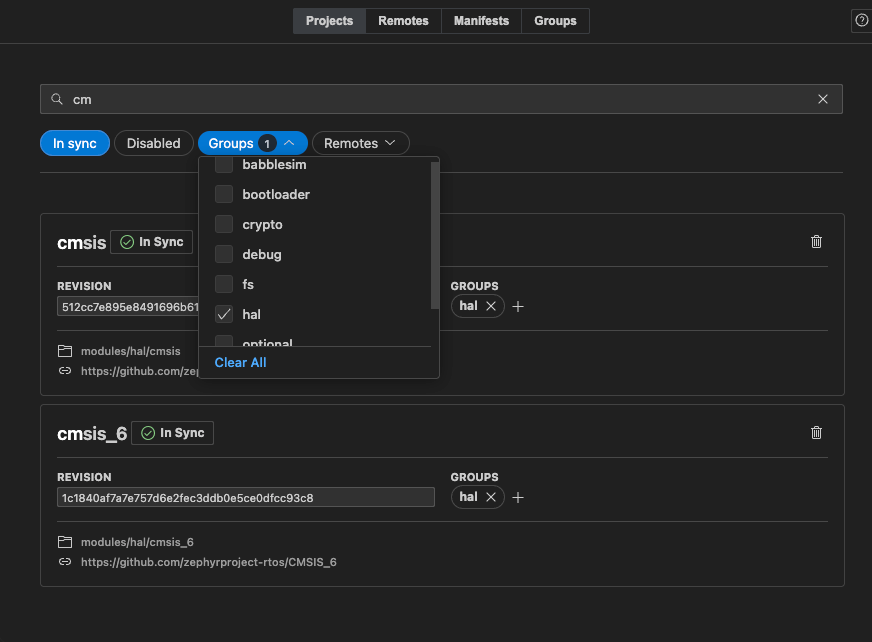
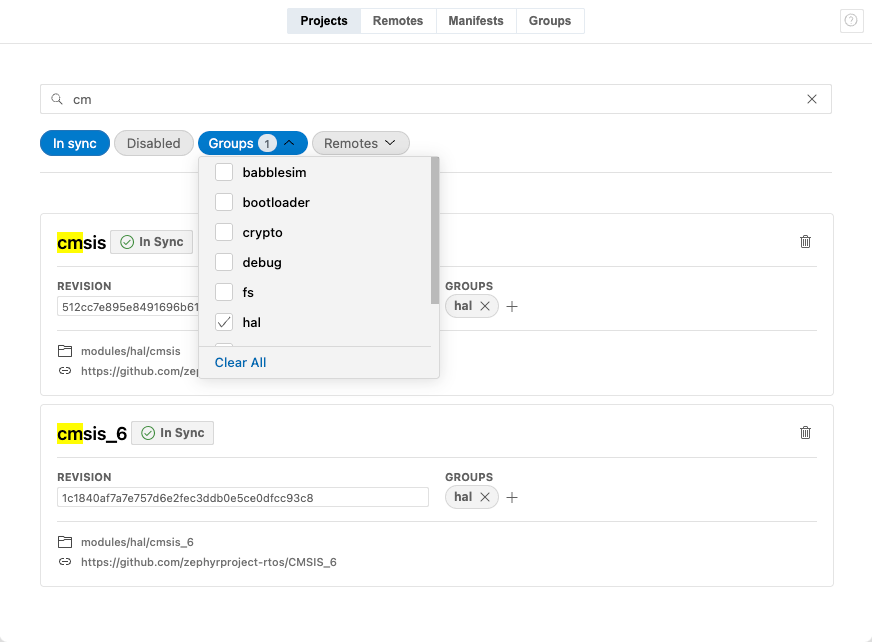
To find projects, enter text in Search Projects. The editor filters the list to the projects whose names contain the text, ignoring case, and highlights the matching text in each name. Use the filter chips to filter the list by project status, group, or remote.
Edit a manifest
To edit the manifest of a west workspace that you manage, open the west.yml file, make your changes, and save the file. Your changes apply to the open file and are written to disk when you save. The editor then refreshes the project statuses from your workspace.
If the editor shows Could not sync west.yml:, it couldn't read or update the manifest. See Fix manifest errors.
Edit a project revision
On the Projects tab, edit the Revision field on the project card.
Add a group to a project
- On the project card, select the + icon (Add Group) next to Groups.
- In the Select a Group list, which shows the groups in the manifest that the project doesn't have yet, do one of the following:
- Select a group.
- Select Create a Group, enter a name, and press Enter or select the check mark.
To cancel, press Esc or select the ×. A group name can't contain whitespace, commas, or colons, and can't start with - or +.
Remove a group from a project
On the project card, select the × on a listed group (Remove group).
Remove a project
On the project card, select the trash icon (Remove project).
Set the group filter
On the Groups tab, set each group to Enabled, Disabled, or None. For what each option means, see Groups.
Add a project
In the current version, the West Editor doesn't support adding projects. To add one, open west.yml as text and add the project entry. The editor then shows the new project as a card.
Fix manifest errors
The editor shows Could not sync west.yml: when it can't read the manifest or can't apply a change to it.
- If
west.ymlisn't valid YAML, or doesn't match the structure that west expects, the editor can't read it and doesn't show the manifest. Select Open west.yml as Text to fix the file. The editor updates when you change the file. - If the editor can't apply a change to the file, the manifest stays on screen and the change isn't saved.