Manage packages from the command line (cfsutil)
You can use cfsutil to install, view, and remove packages in CodeFusion Studio as they become available.
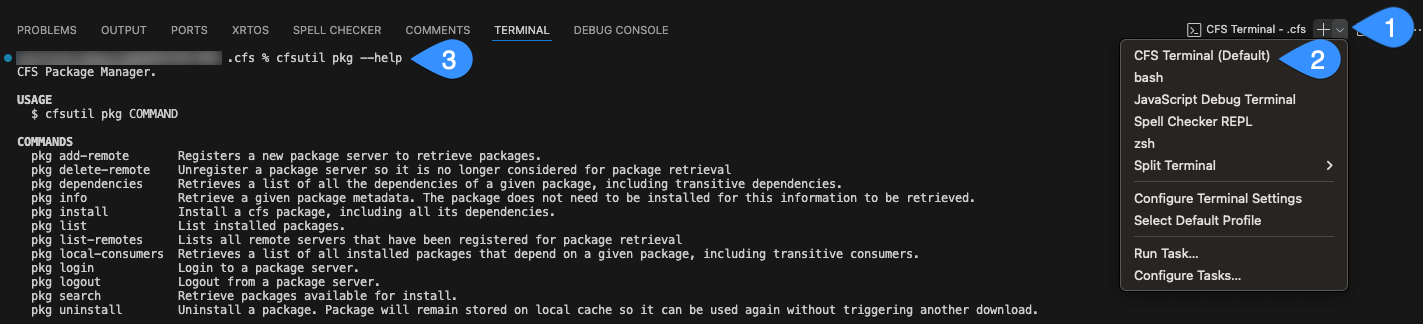
To access cfsutil, open a new terminal (View > Terminal or Ctrl+`). Then complete the following steps:
Note
To run cfsutil from a system terminal outside VS Code, see CFS command line utility.
- In the terminal panel, click the dropdown arrow next to the + icon.
- Select CFS Terminal from the list.
- Run your command, for example:
cfsutil pkg --help
For additional information see CFS Terminal.
Find available packages
To see what packages you can install, run:
cfsutil pkg search "*"
Note
Wrap the pattern in quotes to avoid issues with wildcard expansion.
You can also view details about a package, whether or not it’s installed:
Example: View package details
cfsutil pkg info zephyr/4.3.0
Install a package
To install a package, run the following command with either a package reference or a path to a manifest file. The package reference is written in the format <name>/<version>.
cfsutil pkg install <reference>
Only one version of a package can be active at a time. Previously installed versions remain in the local cache and can be reinstalled if needed.
See the following examples:
Example: Install CFS plugins for workspace creation, System Planner configuration, and code generation
cfsutil pkg install cfs_base_plugins/<version>
Note
Replace <version> with the latest version shown in the Package Manager.
Example: Install CFS data models for System Planner
cfsutil pkg install cfs_base_data_models/<version>
Example: Install Zephyr to develop Zephyr projects
cfsutil pkg install zephyr/<version>
Example: Install MSDK to develop MAX32xxx and MAX7800x projects
cfsutil pkg install msdk/<version>
Install packages from a workspace manifest file
cfsutil pkg install /path/to/workspace/.cfs/.cfsdependencies
Note
For more information about manifest files, see the cfsutil reference.
Install cached packages or packages with version ranges
The cfsutil pkg install command supports semantic versioning, allowing you to specify version ranges instead of exact versions. This allows compatible updates to be installed automatically.
Version ranges use the MAJOR.MINOR.PATCH format (for example, 2.1.0).
Version range syntax limitations
The <packageName>/<version> format supports a single version token only. This can be:
- An exact version (for example,
2.1.0) - A caret range (
^2.0.0) - A tilde range (
~2.0.0) - A single comparison operator (
>=2.0.0)
Compound constraints (for example, >=2.0.0 <3.0.0), logical OR (||), and wildcard patterns (2.1.*) are only supported when installing packages from a manifest file.
Caret ranges (^)
Use the caret (^) to allow minor and patch updates within the same major version.
Install the latest compatible CFS plugins (2.x.x)
cfsutil pkg install "cfs_base_plugins/^2.0.0"
This installs the newest available 2.x.x version, such as 2.3.0.
Tilde ranges (~)
Use the tilde (~) to allow patch updates within the same minor version.
Install latest CFS plugins 2.0.x patch version
cfsutil pkg install "cfs_base_plugins/~2.0.0"
This installs the newest available 2.0.x version, such as 2.0.1, but not 2.1.0 or 2.3.0.
Comparison operators
Use comparison operators to define explicit version constraints.
Install latest available CFS plugins
cfsutil pkg install "cfs_base_plugins/>=2.0.0"
Install any Zephyr version below 4.3.0
cfsutil pkg install "zephyr/<4.3.0"
Default behavior
Package versions follow semantic versioning in the form MAJOR.MINOR.PATCH with optional pre-release identifiers (for example, -b.1). When a version range is specified (for example, using caret ^, tilde ~, or comparison operators), Package Manager installs the newest available stable (non–pre-release) version that satisfies the constraint. For example, cfsutil pkg install "cfs_base_data_models/~2.0.0" installs the newest available 2.0.x version. Pre-release package versions are installed only when you explicitly specify the pre-release tag (for example, packageName/1.0.0-b.1).
Important
Always wrap version specifications containing special characters in quotes to prevent shell interpretation issues.
Use locally cached packages only
Use the -l or --local flag to use only packages already cached locally.
Install a specific package from local cache only (offline mode)
cfsutil pkg install cfs_base_data_models/2.3.0 --local
Verify installation
To check what you’ve installed run:
cfsutil pkg list
To narrow the results, use a pattern with a wildcard:
Example: List all Zephyr versions installed
cfsutil pkg list "zephyr*"
Uninstall a package
To uninstall a package, first check if other packages depend on it:
cfsutil pkg local-consumers <name>
Example: Check for dependent packages before uninstalling
cfsutil pkg local-consumers msdk
If dependencies are listed, you must uninstall those dependent packages first. If no dependencies are listed, you can uninstall the package. Only include the package name (not the version) in the command:
cfsutil pkg uninstall <name>
Example: Uninstall the MSDK package
cfsutil pkg uninstall msdk
Clean up unused packages
-
After uninstalling packages, you can remove any unused cached packages from your local storage:
cfsutil pkg delete "*"This command deletes all packages that are not actively installed.
-
Run the following command to view the remaining installed packages.
cfsutil pkg list -
You can then uninstall any additional packages using the following command:
cfsutil pkg uninstall <name> -
Run the delete command again to complete the cleanup.
Tip
To view the full list of commands, run cfsutil pkg --help or refer to cfsutil.
Each command also provides its own help. For example: cfsutil pkg install --help.