CFS command line utility
CFSUtil is an executable which provides command-line access to CodeFusion Studio functionality.
Accessing CFSUtil
You can access cfsutil from the CFS terminal or from a system terminal.
From the CFS terminal in VS Code (recommended)
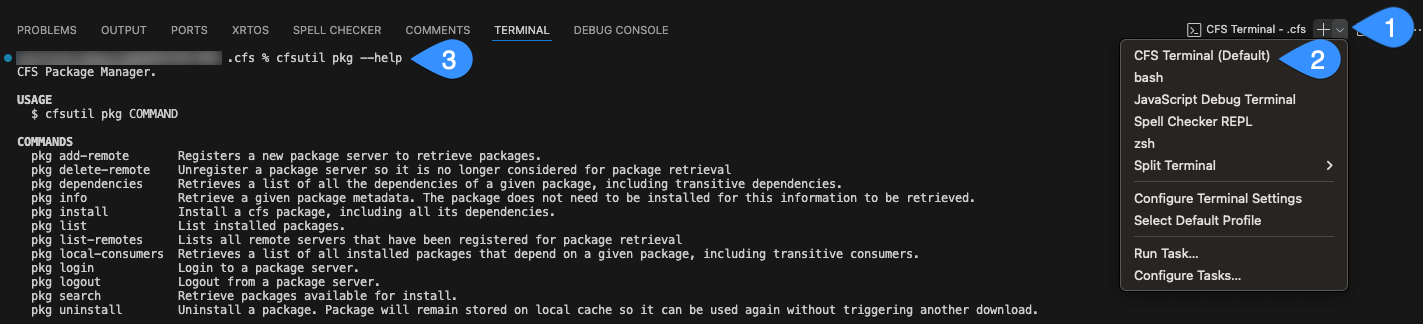
Open a new terminal in VS Code (View > Terminal or Ctrl+`), then:
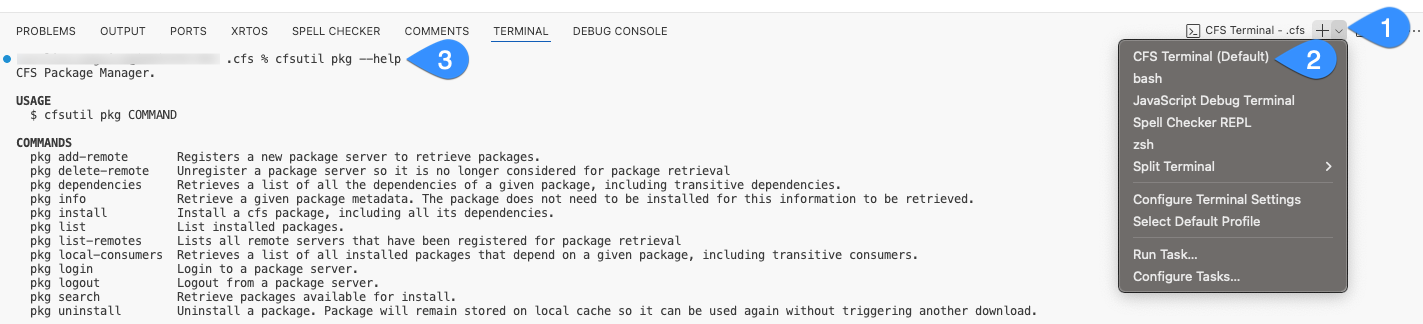
- In the terminal panel, click the dropdown arrow next to the + icon.
- Select CFS Terminal from the list.
- Run your command, for example:
cfsutil --help
From a system terminal outside VS Code
If you prefer to run cfsutil outside of VS Code, use the following paths:
- Windows:
<CFS-Install>/Utils/cfsutil/bin/cfsutil.cmd - Linux and macOS:
<CFS-Install>/Utils/cfsutil/bin/cfsutil
Note
This page refers to cfsutil, but the commands used are the same regardless of method used.
Tip
cfs is an alias for cfsutil and works with all commands.
Structure
CFSUtil contains a hierarchy of commands and sub-commands, each with their own parameters and help menus.
Help
Passing --help at any level of the hierarchy shows the help information about that component.
You can access help at various levels:
cfsutil --helpprovides top-level help.cfsutil ai --helpprovides help for theaicommand group.cfsutil ai build --helpprovides help for theai buildcommand.
Example
cfsutil --help
Example
cfsutil ai --help
Example
cfsutil ai build --help
Command Categories
CFSUtil provides various command categories for different tasks:
- AI - Compile AI models, analyze compatibility, profile resources, and manage models within a workspace
- CFS Plugins - List and manage CFS plugins
- Catalog - Update or restore the SoC catalog
- Device Tree - Parse and work with device tree files
- Docker - Pull Docker images
- ELF Utilities - Analyze and inspect ELF files
- Generate - Generate source code from configuration files
- myAnalog Authentication - Authenticate with myAnalog for package access
- API Key Authentication - Create and manage API keys for use in automated workflows
- Package Manager - Install and manage SDKs, plugins, and toolchains
- Plugins - Extend CFSUtil with additional CLI plugins
- Port - Information about active serial ports
- Project - Create and manage projects within workspaces
- SoCs - Manage SoC data models
- Tasks - List tasks for a named workspace
- Workspace - Create and manage CFS workspaces
Working with multiple configuration files
Some cfsutil commands work with .cfsconfig files. When cfsutil automatically discovers a configuration in your workspace, it expects only one .cfsconfig file in the .cfs/ directory. Some commands require this file to use the filename expected by your workspace (<soc>-<package>.cfsconfig). Others may select the first .cfsconfig file found in .cfs/. If multiple configuration files are present, selection may be non-deterministic and lead to unexpected results.
To avoid this, ensure that only one .cfsconfig file is present in .cfs/ before running a command.
The --config option, if supported by the command (such as the ai commands), should be used to select a specific file directly. Otherwise, to switch configurations, copy the one you want into .cfs/ using the expected active filename:
Warning
The rm command permanently deletes all .cfsconfig files in the .cfs/ directory. Ensure you have backups or copies of any configurations you want to keep before running it.
rm -f .cfs/*.cfsconfig
cp .my_configs/combination_i_want.cfsconfig .cfs/<soc>-<package>.cfsconfig
cfsutil <command>
Or store alternates in .cfs/ under a name that does not end in .cfsconfig and copy the one you want to activate to the expected filename:
cp .cfs/my.cfsconfig.a .cfs/<soc>-<package>.cfsconfig
cfsutil <command>
Note
The above examples use Unix-style commands (rm, cp). These work in the CFS Terminal, macOS, Linux, or Windows environments such as Git Bash or WSL.