Software requirements
Host OS support
CodeFusion Studio and its extension are supported on the following host operating systems:
- Windows 11 (64-bit)
- macOS 15 and macOS 26 (ARM64)
- Ubuntu 22.04 and 24.04 (x86-64)
Earlier or newer OS versions may work but are not officially supported.
Software dependencies
The CodeFusion Studio VS Code extension depends on Microsoft Visual Studio Code version 1.101 or later (recommended).
Note
Older versions of VS Code (such as 1.98 and earlier) are not supported due to known layout issues in the System Planner > Pin Config canvas.
Install Visual Studio Code
-
Download the installer from the Visual Studio Code download page.
-
Run the installer and accept the license agreement.
-
When prompted, select the installation folder. We recommend the default location.
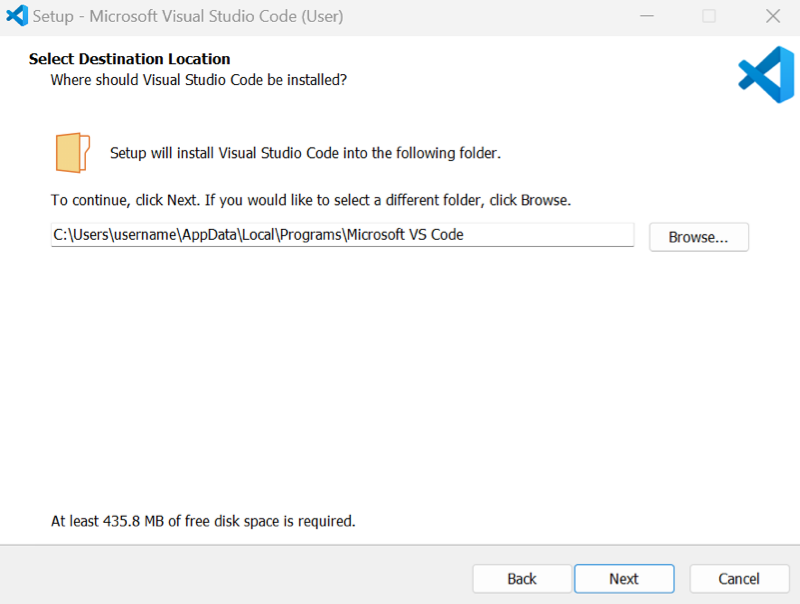
-
Follow the on-screen prompts, keeping the default settings, including the defaults on the Select Additional Tasks page.
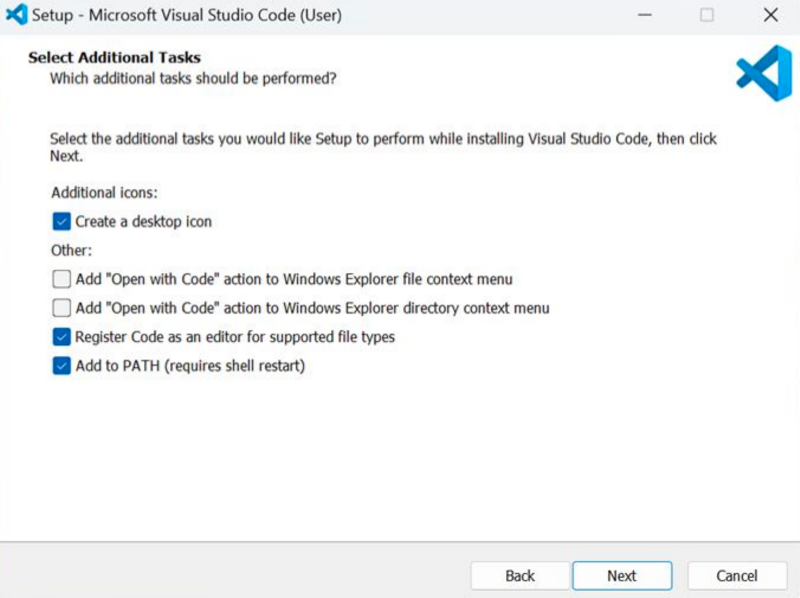
-
Select Install.
-
Open Visual Studio Code to verify that it opens correctly.
-
Download the x64
.debpackage from the Visual Studio Code download page. -
Install the downloaded package from a terminal:
sudo apt install ./code_<version>_amd64.debReplace
code_<version>_amd64.debwith the name of the downloaded file. When asked to confirm the required disk space, enterYto continue. -
Open Visual Studio Code from the terminal to verify that it opens correctly:
code
-
Download the macOS (Apple silicon) build from the Visual Studio Code download page.
-
Double-click the downloaded archive to extract Visual Studio Code.app.
-
Move
Visual Studio Code.appto theApplicationsfolder. -
Open Visual Studio Code to verify that it opens correctly.
Next steps
After installing the required software, install CFS.