Save and restore your setup
A workspace saves which devices you had open and every parameter value on them, so you can pick the same setup back up later. Use it to keep a bench configuration between sessions, or to hand a configuration to someone else.
A workspace stores configuration: your devices, their controllers, and their parameter values. Captured data lives separately, so export any waveforms, spectra, or analysis results you want to keep from the Analysis view before you close.
Before you start
- Open the devices you want to save from the Start tab.
- Set them up the way you want them saved. Parameter values are stored as they are when you save.
Open the Workspace Manager
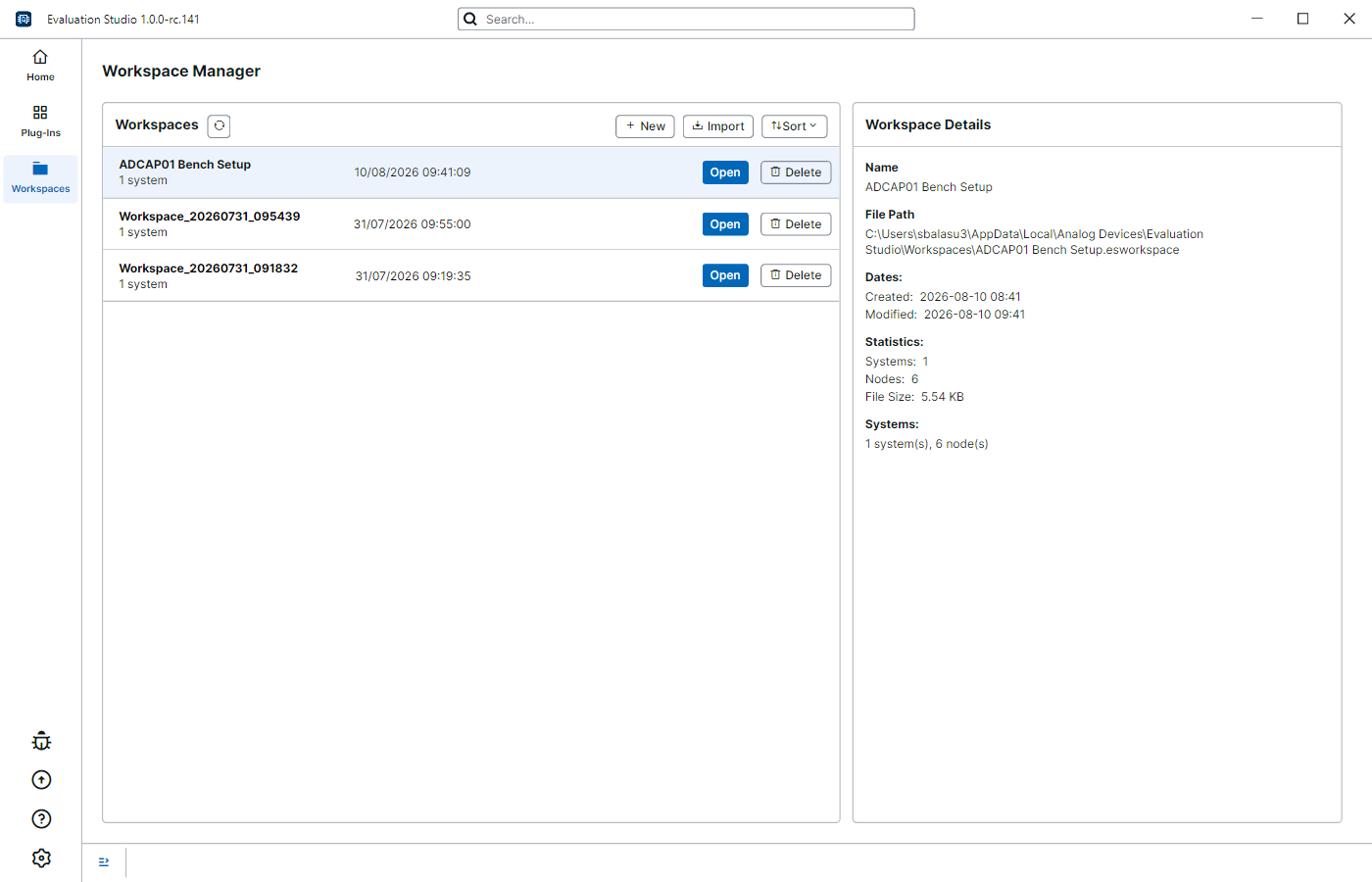
Click Workspaces in the left navigation bar. The page lists the workspaces already on your computer, newest first.
Click a row to see its details on the right — the file path, when it was created and last changed, and how many systems and nodes it holds.
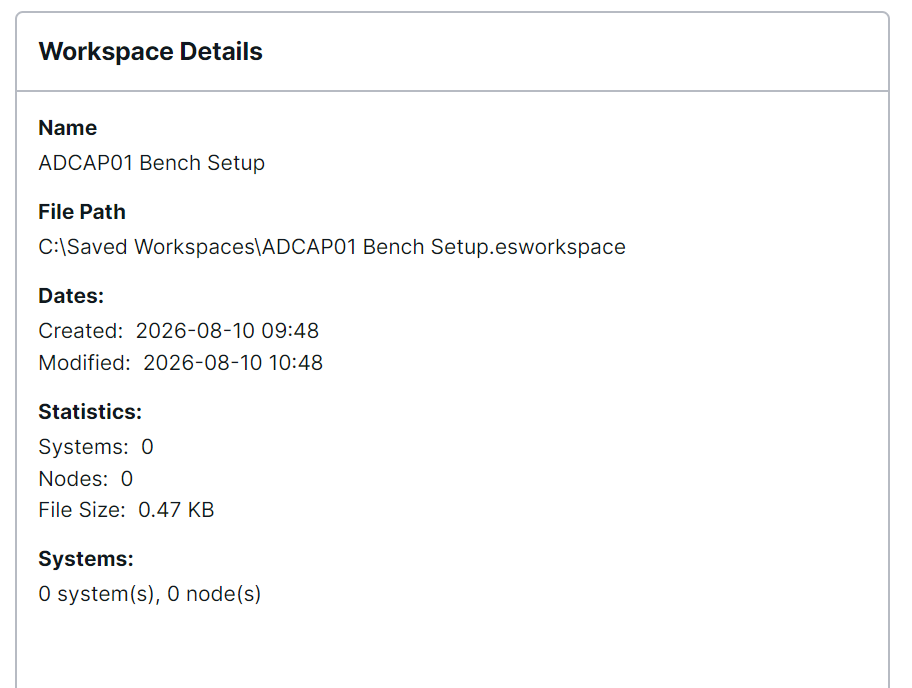
Save your setup

With your devices open, click New. This saves everything currently open straight away,
under an automatically generated name like Workspace_20260810_094109.
New is available while no workspace is open. Once one is, use Save As to branch off a separate workspace, or Close to start fresh.
To give it a name of your own, use Save As on the new row. You can also rename a workspace at any time by renaming its
.esworkspacefile on disk.
Once a workspace is open, its row moves to the top of the list, is tagged Current, and its buttons change to act on it.

| Button | What it does |
|---|---|
| Save | Overwrites the workspace file with what is currently open. |
| Save As | Saves to a new file, and that new file becomes the current workspace. |
| Close | Closes the workspace and every device in it. |
Open a workspace
Every row that is not the current workspace offers Open and Delete.

Click Open. Opening a workspace first closes anything you already have open, then reopens the saved devices, installs any plug-ins it needs, and restores the saved parameter values. When it finishes, you land on the Home tab with the devices ready.
Larger workspaces might take a few seconds to open. The Open button shows a spinner while it works.
Delete takes effect immediately, so check you have the right row before you click it.
Assign a controller
A workspace remembers the specific hardware it was saved against. When you open it, Evaluation Studio looks for that hardware and normally reconnects without asking.
When the saved hardware is unavailable — it is disconnected, or you are on a different bench with a different unit — it asks you to choose instead.
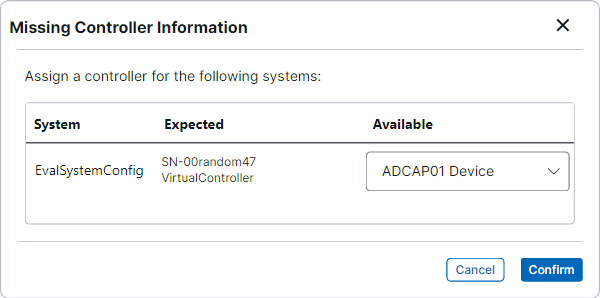
There is one row per device that needs a controller.
| Column | What it shows |
|---|---|
| System | The saved device that needs a controller. |
| Expected | The hardware it was saved against, and the controller type. |
| Available | Connected controllers you can use instead. Pick one. |
Choose a controller for each row and click Confirm. The device opens on the hardware you picked, with your saved parameter values applied. Save the workspace afterwards to keep the new pairing for next time.
To skip a device, leave its row empty or click Cancel. The rest of the workspace opens as usual, and the skipped devices remain in the saved file.
When devices are skipped, the workspace still becomes the current one and its row lists everything it was saved with. Use Save As to keep the smaller setup as its own workspace, leaving the original as it was.
Close a workspace
Click Close on the current workspace's row. You are asked whether to save first.
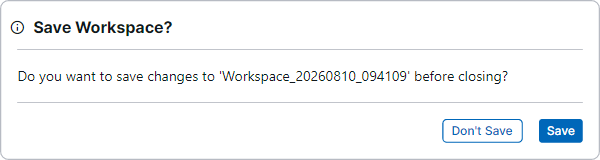
| Button | What it does |
|---|---|
| Save | Saves the workspace, then closes it. |
| Don't Save | Closes it, keeping the file as it was at your last save. |
You get the same prompt when you close Evaluation Studio with a workspace open. It appears every time, so you always get the choice.
If the save cannot complete, a Save Failed message explains why and the workspace stays open so you can try again.
Share a workspace
By default, workspace files live in your Evaluation Studio data folder:
Each one is a single .esworkspace file — plain text, usually a few kilobytes, holding the configuration and parameters that were saved. Copy that file to share it.
To use a workspace file from somewhere else, click Import from the Workspaces view in Evaluation Studio and pick the file. Import leaves the file in the same location on your disk and adds it to your list of workspaces. You can select more than one file at a time.
A workspace records which devices it needs, but not the devices themselves. Opening one on a different bench works as long as compatible hardware is connected — see Assign a controller.
Related
- Analysis — capture data, and export it before closing a workspace.
- Memory Map — the parameter values a workspace saves and restores.
- Plug-in Management — the plug-ins a workspace installs when it opens.
- Logs — where workspace errors appear.