Report an Issue
When something in Evaluation Studio misbehaves, the support team needs to know what you saw and what the application was doing. Report an issue collects both for you — it drafts an email with the application log and a screenshot already attached, leaving you to describe what happened and send it. Nothing is sent automatically: the draft opens in your own mail client, yours to review first.
What the report contains
One click gathers everything support needs and drops it into an email draft. Nothing leaves your machine until you send it:
- System information, in the body — the application version, your operating system, your user name, and a timestamp.
- The application log, attached — the current log file, so support can see what the application was doing. This is the best source of debug info for the support team. Best-effort: if no log file is found, the report is still built without it.
- A screenshot of the main window, attached — captured the instant you click. Also best-effort.
- Addressed to
evalstudiosupport@analog.com, from your email address.
Before you start
- Evaluation Studio running.
- A default mail client configured — the draft opens in whatever handles email on your machine.
Note
The screenshot captures whatever is on screen the instant you click, so have the problem visible first. If a dialog or another window is covering it, arrange the view before you start.
Steps
-
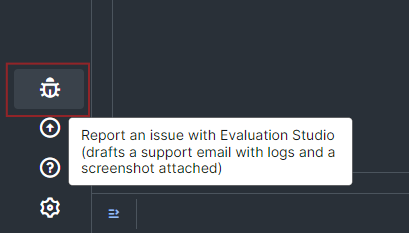
Click Report an issue — the bug icon at the bottom of the left rail, alongside the Settings and About buttons.
-
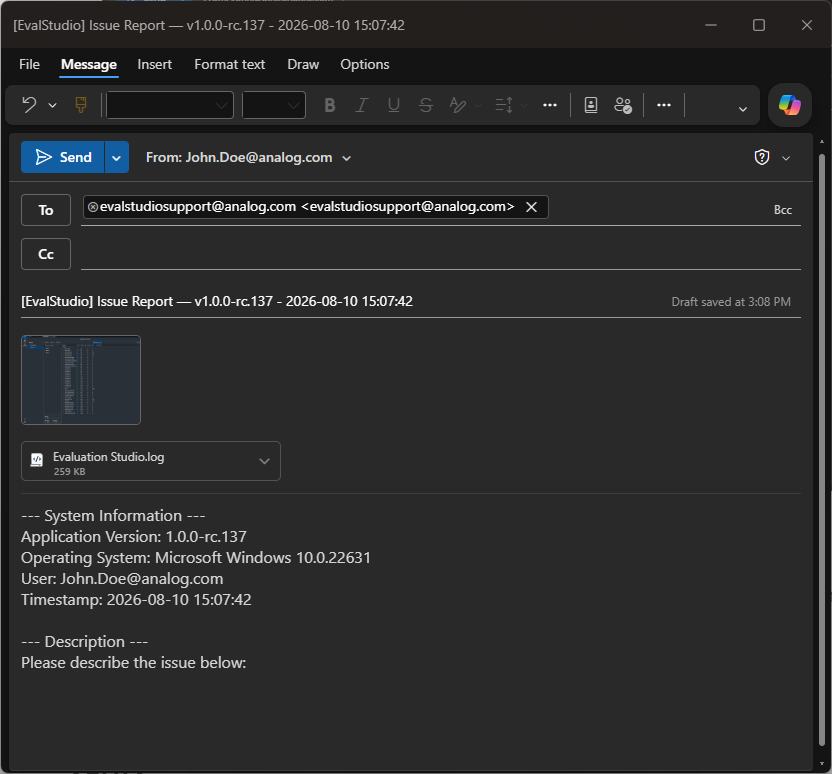
Wait for your mail client to open a new draft. The To, Subject, and Body are already filled in, with the log and screenshot attached.
-
Describe the problem where the body reads Please describe the issue below: — what you did, what you expected, and what happened instead.
-
Check that both attachments are there: a log file and a
.pngscreenshot. If either is missing, see If something goes wrong. -
Send the email from your mail client. It goes to the support team, who will follow up with you at your email address.
Verify
Your mail client shows a new draft with a subject line beginning
[EvalStudio] Issue Report — v — followed by the version and a timestamp — and
two attachments listed: a log file (.log or .txt) and a screenshot
(.png). If all three are in place, the report was built correctly and is ready
to send.
Note
On macOS and Linux the draft opens through whatever application is
registered to handle .eml files, rather than a Windows mail client — but
the report itself is built the same way on every platform.
Generating the report from a script or AI assistant
Scripts and connected AI assistants can build the same report without opening a
mail client, through the diagnose_report_issue transaction — it writes the
.eml file, with the same log and screenshot attachments, to disk and returns
its path instead. See Scripting for how to call transactions.
When you can't send email from this machine
If the machine has no mail client — or can't send from the account you need — you can still get the log to support by retrieving it yourself and sending it from elsewhere:
- Expand the Log view (the bottom panel) with the collapse toggle at the far left of the bottom strip.
- Click More, then Open Log Folder. File Explorer opens on the folder
holding the current log file,
Evaluation Studio.log. - Copy that file out — to a USB drive, a share, or a machine that can send
mail — and email it to
evalstudiosupport@analog.comwith a description of the problem.
See Logs for more on the log file and what it contains.
If something goes wrong
| Symptom | Likely cause | What to do |
|---|---|---|
| Nothing opens after you click | No default mail client is registered to handle email (on macOS/Linux, nothing handles .eml) |
Set a default mail application and try again. A toast reports the failure — the application log (bottom panel) has the details. |
The From address is unknown@unknown.com |
Your machine isn't domain-joined, or no email address is available for your account | Harmless — the report still builds. Correct the From in your mail client before sending. |
| No log is attached | No active log file was found when the report was built | Note it in your description. See Logs to find the log yourself and attach it. |
| No screenshot is attached | The capture failed — it's best-effort and never blocks the report | Attach one manually in your mail client before sending. |