Scripting
Everything Evaluation Studio does — opening a board, capturing data,
running an analysis, even pressing a button — is a transaction, and every
transaction can be called from a script. The evalstudio-client Python
package turns your bench into a library: connect to the running
application, call the same operations it runs, and get structured results
back.

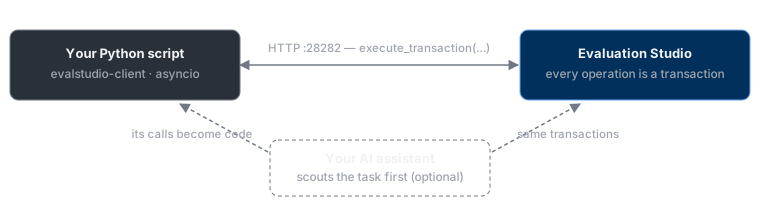
The script drives the application through the same transactions the UI uses — and an AI assistant makes a good scout for finding the right calls.
Set it up
- In Settings → Scripting, turn on Enable HTTP API and check that its status line reads Listening on port 28282 (see Settings).
-
Install the packages — they are published on ADI's public package index:
Your first script
CoreTransactions gives every built-in operation a typed method — your
IDE completes the names and arguments. Calls are async, so drive them
with asyncio:
import asyncio
from evalstudio import EvalStudioClient, RestTransport
from evalstudio_core_transactions import CoreTransactions
from evalstudio_core_transactions.models import NotificationType

async def main():
    client = EvalStudioClient(RestTransport("http://localhost:28282"))
    core = CoreTransactions(client)
    r = await core.ui_toast(notification_type=NotificationType.INFORMATION,
                            message="Hello from Python!")
    assert r.success, r.error

asyncio.run(main())
Run it and a toast notification pops up in the application window. Every
call returns the same envelope: success (bool), result (the
transaction's payload), and error (the message when success is
false).
Note
A script leaves the same trail as a person at the keyboard: each call shows up in the application window as it happens, appears in the log, and can be captured in a recording.
A real capture
No hardware needed — the built-in virtual capture system works anywhere. This opens it and runs a capture:
import asyncio
from evalstudio import EvalStudioClient, RestTransport
from evalstudio_core_transactions import CoreTransactions

async def main():
    client = EvalStudioClient(RestTransport("http://localhost:28282"))
    core = CoreTransactions(client)

    # Open the built-in virtual capture system
    r = await core.hardware_open_virtual_controller(
        hardware_id="VirtualCaptureID")
    assert r.success, r.error

    # Capture and run the analyzers on its analysis node
    r = await core.analysis_capture_and_analyze(
        return_analysis=True,
        return_capture_data=False,
        return_series_data=False,
        context="Virtual Capture Demo_e743/Virtual Capture Demo/Analysis")
    assert r.success, r.error
    print(r.result["analysis"])

asyncio.run(main())
The context= string aims the capture at the virtual system's analysis
node — Context paths below explains where it comes
from.
Typed wrappers and raw calls
Every method on CoreTransactions is a typed wrapper over the client's
one underlying call: execute_transaction(name, parameters,
context=None). The capture above, rewritten as a raw call:
r = await client.execute_transaction(
    "analysis_capture_and_analyze", {"ReturnAnalysis": True},
    context="Virtual Capture Demo_e743/Virtual Capture Demo/Analysis")
Prefer the wrappers: your IDE completes the names and arguments, and
every parameter is stated explicitly (the raw dict may omit ones the
application defaults; its field names are case-insensitive). The raw
form is for transactions that have no typed package — in particular
plug-in transactions: plug-ins will ship their own
(evalstudio-plugin-*, planned); until then, call theirs by name.
Context paths
The context= argument aims a transaction at one node of the open
system — an analysis view, a device, a register map. List every path in
the open systems with contexts_list:
The first segment names the system and ends in a short fingerprint
derived from the device's hardware id (Virtual Capture Demo_e743) —
stable for the same device, different for a different one. So a path
pasted into your script keeps working as long as the script targets the
same bench. When the script should find its node at run time instead —
say, on whichever board is open — select from the list rather than
pasting (and match on the path too if more than one system is open):
Find the transaction you need
Two good routes:
Ask your AI assistant. Connect an assistant and ask it to
do the task once while you watch. The tools it calls are these same
transactions with the same arguments — when it runs
analysis_capture_and_analyze with a _context, that is exactly
execute_transaction("analysis_capture_and_analyze", …, context=…) in
your script. Scout first, then freeze the calls that worked into code.
Ask the application. The API describes itself:
curl http://localhost:28282/api/transactions/discover   # every transaction + its parameters
curl http://localhost:28282/api/contexts/list           # every context path in the open systems
No Python? The same API speaks plain HTTP
Every transaction is a REST endpoint: POST
/api/transactions/<name> with the arguments as a JSON body, and the
context path (when one is needed) in an X-Context-Path header. The
response is the same success / result / error envelope.
curl -X POST http://localhost:28282/api/transactions/ui_toast \
  -H "Content-Type: application/json" \
  -d '{"NotificationType":"Information","Message":"Hello from curl!"}'
Prefer plain HTTP on port 28282 for shell scripts; the HTTPS endpoint on 28283 uses a self-signed development certificate that most tools reject without a skip-verification flag.
Good habits
- Check every call —
assert r.success, r.errorafter each transaction, so a failure stops the script with the real message instead of surfacing three steps later. - Poll, don't sleep. For operations that take time (an install, a long capture), loop on the state you are waiting for with a timeout rather than sleeping a guessed duration.
- Choose pasted vs looked-up context paths deliberately — a pasted path is bench-specific, a run-time look-up is portable (see Context paths).
Troubleshooting
| Symptom | Cause | Fix |
|---|---|---|
| Connection refused | The HTTP API is off, or the application isn't running | Turn on Enable HTTP API in Settings → Scripting and check its status line |
pip can't find evalstudio-client |
The install command is missing the package index | Include the --extra-index-url flag exactly as shown above |
| Certificate errors | Connecting to https://localhost:28283, which uses a development certificate |
Use http://localhost:28282 on your own machine |
| A transaction errors about its context | The context path was guessed, or copied from a different device | List paths with contexts_list and copy the current one exactly |