Upload Input Data
AI model inference requires input data to generate predictions or outputs based on learned patterns and context specific to that input. This step allows users to upload input data. Refer to the table below for the supported formats.
Supported formats
| Input Data | Supported Formats | Maximum File Size |
|---|---|---|
| Image | PNG, JPEG | <10 MB |
| Audio | MP3, WAV (Keyword Spotting Task Types maximum duration is 1 second; other task types are 5 seconds) | <10 MB |
| Time-Series | CSV | <10 MB |
Important
The maximum number of files you can upload is 10.
Uploading files
-
Drag and drop files into the uploader pane or click Browse to manually select files via File Explorer and, after choosing the files, click Upload.

-
A progress bar will appear during the upload process. The Uploaded Files pane will appear after a file is successfully uploaded.
Note
You can continue to upload files while there is an ongoing upload as long as the total number of files doesn't exceed the maximum limit of 10.
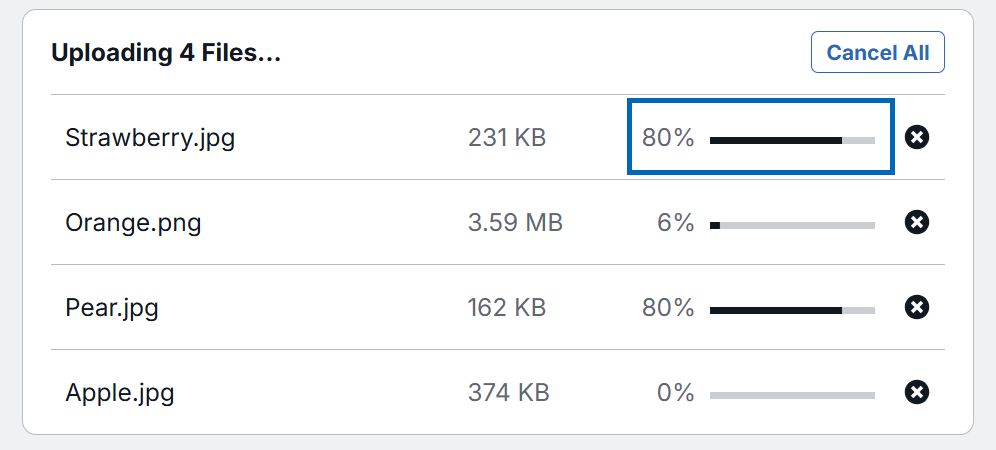
-
Cancel individual file uploads by clicking on the X icon.
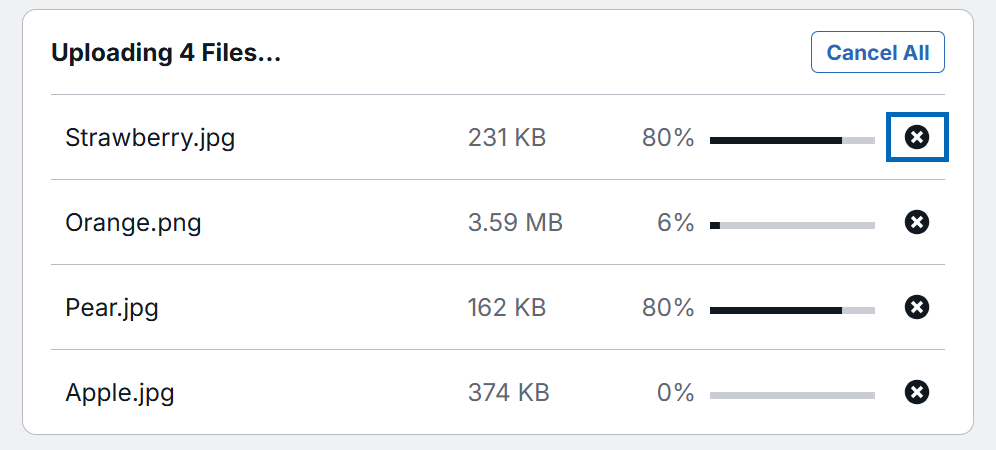
-
To cancel all ongoing uploads, click the Cancel All button.

-
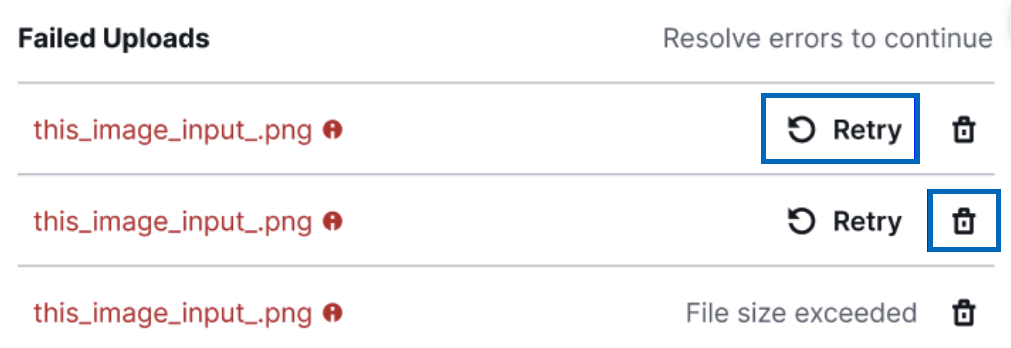
A Failed Uploads pane will appear after an error occurs during the upload process. Click the Retry button if you want to try and upload the files again, or you can click the Trash icon to remove the failed upload.
Managing uploaded files
Successfully uploaded files will be listed in the Uploaded Files pane.
-
Delete individual files by clicking on the Trash icon.

-
Remove all files at once by clicking Delete All.

Once all required files are uploaded, click the Next button to proceed.