Configure and compile
The configure and compile step enables users to configure hardware-specific compilation settings, allowing for optimized model performance on the selected target hardware. It provides flexibility to experiment with different configurations, which can significantly influence how the model performs once deployed on the actual hardware.
Starting the compilation process
-
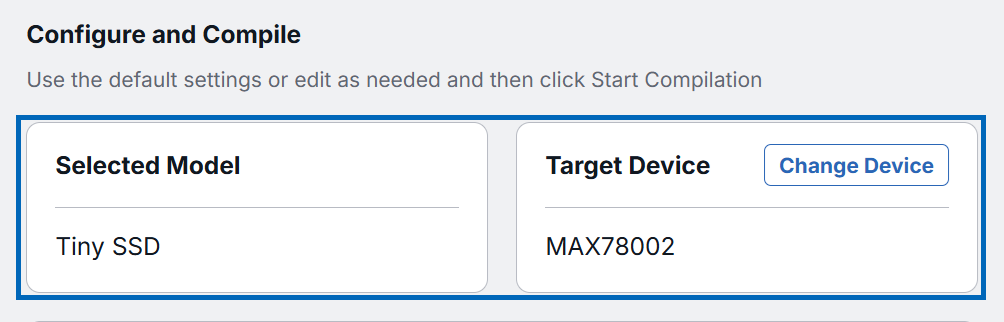
Review Selected Model and Target Device. Ensure you have selected the correct model and device to avoid compiling the wrong model.
-
(Optional) If you want to change the target device, click the Change Device button to select a different target hardware. This returns you to Step 1 Device Selection to select another device.
-
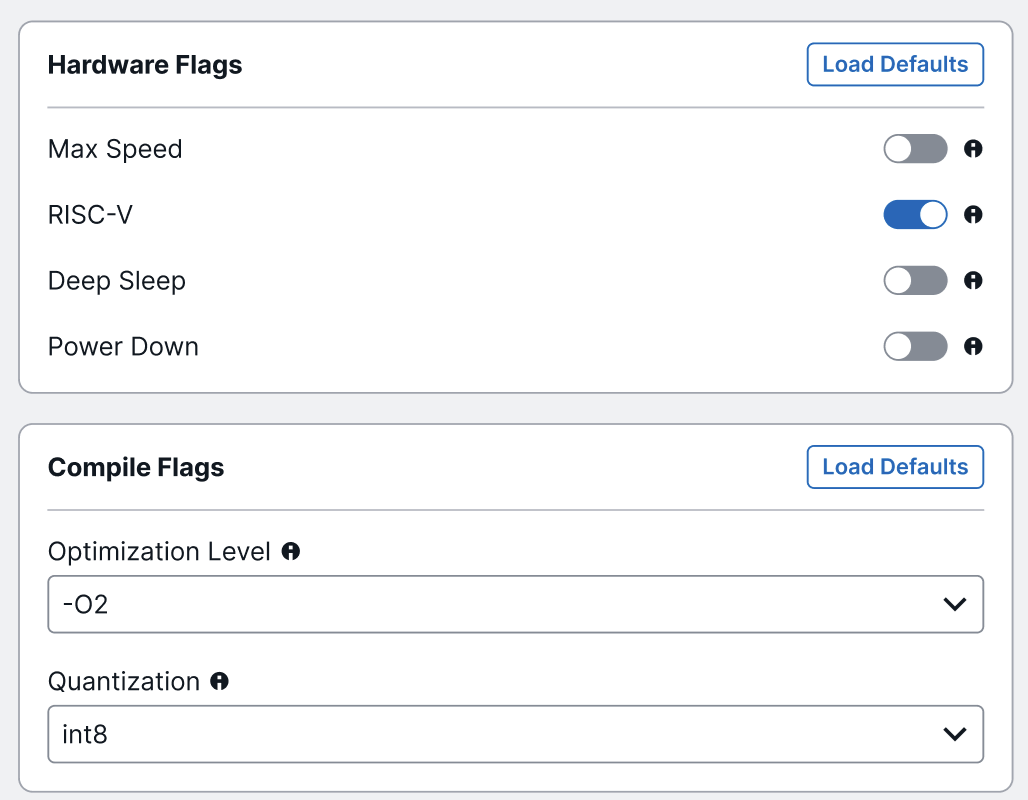
Access the Hardware Flags and Compile Flags sections to customize these parameters as needed to suit the specific requirements of your model. See the Compilation Flag Settings Overview section for more details.
Note
Upon selecting a device, the default hardware settings provided by ADI are automatically loaded. These settings dynamically change based on the target hardware selected. If you want to revert all changes and restore the recommended default values, click the Load Defaults button.
-
Review the settings to make sure they are correct.
-
Click Start Compilation to begin building the model for the selected device.
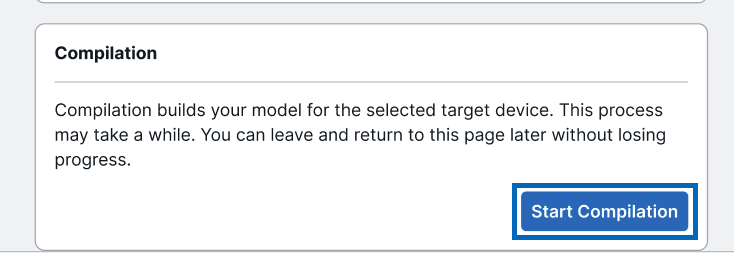
Once the compilation process begins, the interface displays real-time feedback to help users monitor progress and detect issues. These indicators include:
-
Progress Indicators
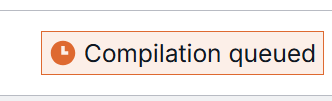
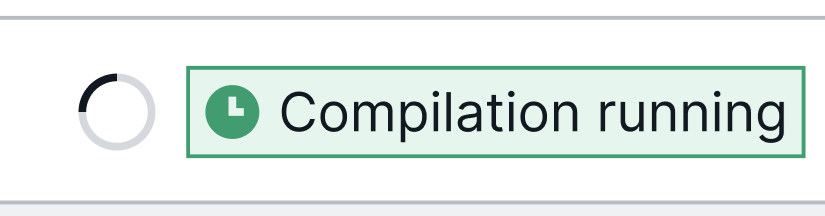
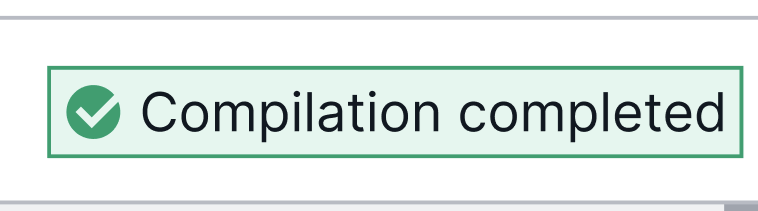
A progress bar and icon show the current status of the compilation. Please see Compilation Bar and Icon Progress Indicators section for a description of each status.
-
Failure Indicators
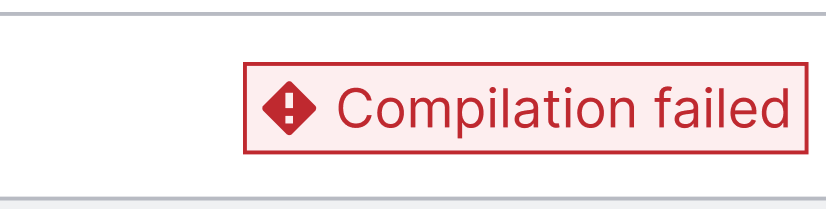
If the compilation fails, both the progress bar and the top-right status icon will indicate the failure, with detailed logs available for troubleshooting.
-
Logs Pane
Detailed logs are displayed in the bottom pane, providing a summary of background activities and any errors encountered. These logs can be collapsed or expanded and are useful for troubleshooting and understanding what went wrong during compilation.
Important
During compilation, changes to any of the build steps will not be permitted. Users can only modify the build step settings after the Compilation process is completed or if the process is aborted.
Tip
You can click Abort Compilation anytime to stop the process. Stopping the compilation will not reset any changes you made.
When you reconfigure compilation settings after starting a build, a confirmation window appears, informing about recompiling a new build with the updated settings. Note that starting a new build will save the previous build in your history.
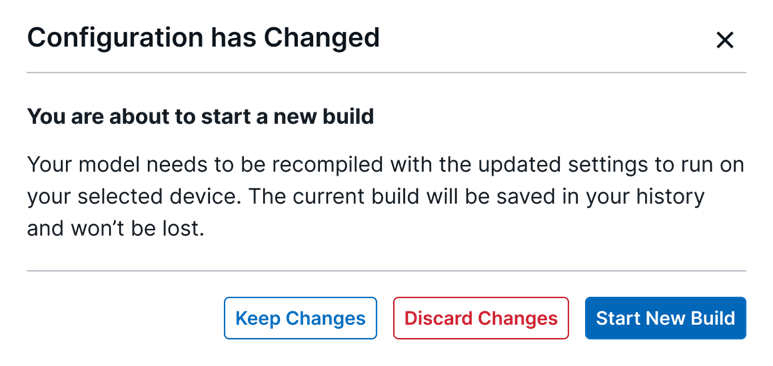
Confirm whether to keep, discard, or accept changes using the following buttons:
-
Start New Build – accept the configuration changes and initiate a new build.
-
Discard Changes – use previously loaded configuration prior to the recent settings modification and do not accept any changes; no new build will be started when this option is selected.
-
Keep Changes – select this to retain the changes to configuration, but do not start a new build.
-
-
Once the compilation is complete, click Next to proceed.
Note
The Next button will remain disabled until compilation is complete.
Important
You can now also export the project and import it into CodeFusion Studio. For more information, see Exporting Builds for Codefusion Studio.
Tip
Steps 3, 4, and 5 may be completed in any order.
Compilation flag settings overview
Optimization levels
| Flag | Description |
|---|---|
| -O0 | Reduces compilation time and ensures debugging produces expected results. (Default) |
| -O2 | Performs nearly all supported optimizations that do not involve space-speed tradeoffs. |
Quantization options
| Type | Description |
|---|---|
| int8 | Model weights and activations use 8-bit integer data type. |
| int16 | Model weights and activations use 16-bit integer data type. |
| float32 | Model weights and activations use 32-bit floating point data type. |
| implied | Model weights and activations are defined by the user-uploaded model. |
Important: For custom models or BYOM workflow, ensure the selected quantization matches the quantization used during model training.
Compilation flags
| Flag | Description |
|---|---|
| max-speed | In pipeline mode, loads weights and input data on PLL clock ÷1 instead of ÷4. ~50% faster, but ~200% energy usage. |
| riscv | Uses RISC-V processor. |
| deepsleep | Puts ARM core into deep sleep during inference. |
| powerdown | Powers down unused MRAM instance. |
| kernel | Specifies kernels to be used by the inference runtime. |
Kernel options
| Option | Description |
|---|---|
| Reference | Uses default reference kernels from TFLite. |
| CMSIS-NN | Uses optimized kernels for ARM Cortex-M core. |
| ADI-SHARCFX-NN | Uses optimized kernels for SHARCFX core. |
Compilation bar and icon progress indicators
| Status | Description |
|---|---|
| Queued/Compilation Queued | EdgeBench has initiated your compilation request; waiting to begin processing. |
| Running/Compilation Running | EdgeBench is compiling your model for the selected target device. |
| Failed /Compilation Failed | The compilation process has failed due to an error. Please see the logs for additional details. Ensure that you fix the error before restarting the process. |
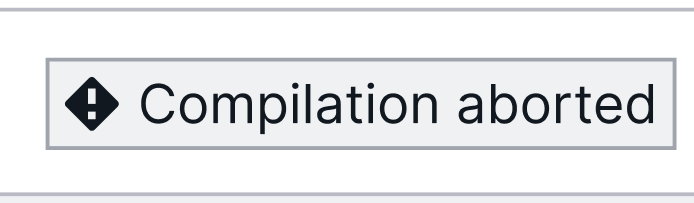
| Aborted /Compilation Aborted | The compilation process was manually stopped after clicking the Abort Compilation button. Click Start Compilation to start compiling again. |
| Completed /Compilation Completed | EdgeBench has finished compiling your model. You can now proceed to the next step. |
Visual tag
| Status | Progress Bar Indicator | State Indicator |
|---|---|---|
| Queued/Compilation Queued | 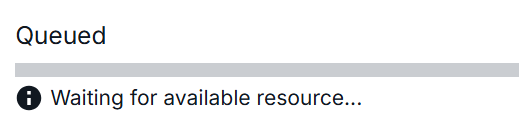 |
 |
| Running/Compilation Running | 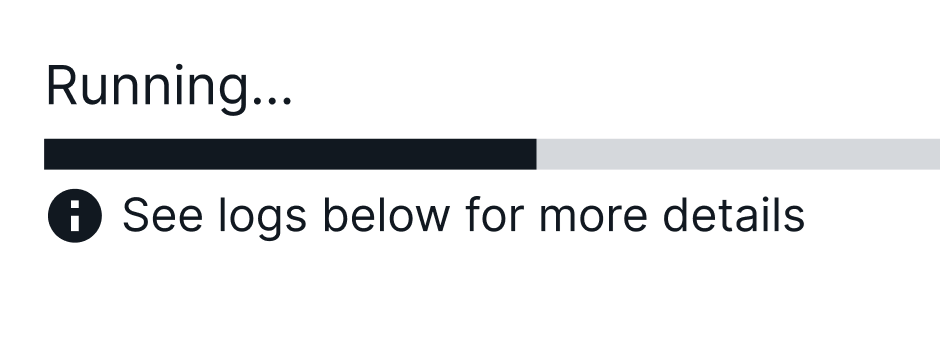 |
 |
| Failed /Compilation Failed | 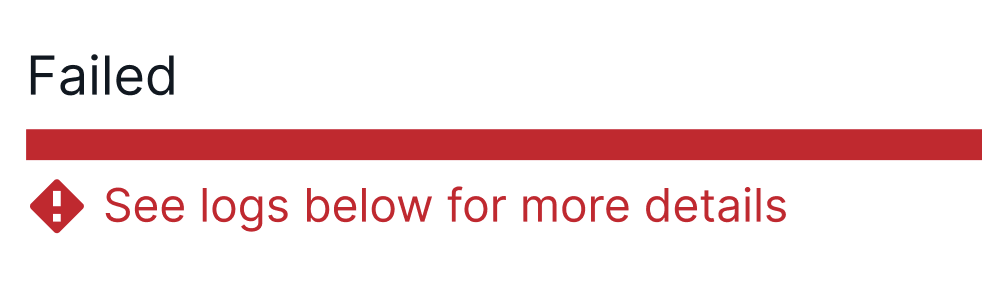 |
 |
| Aborted /Compilation Aborted | 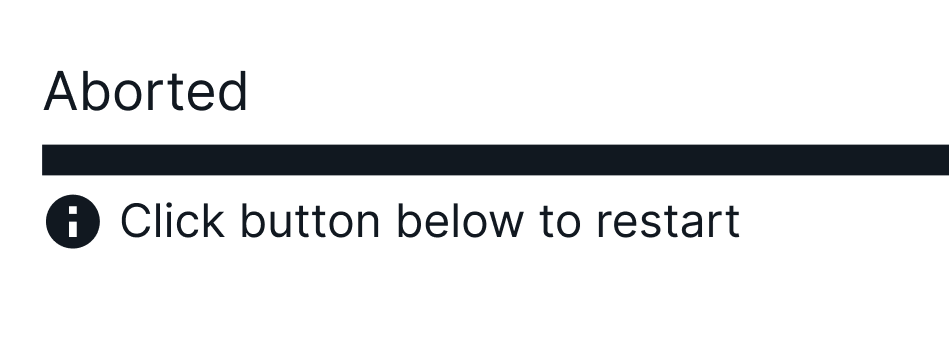 |
 |
| Completed /Compilation Completed | 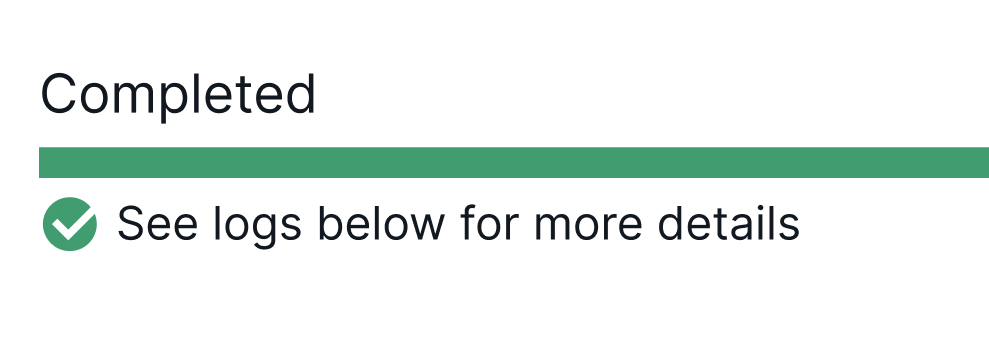 |
 |